Courses Module
4/16/2026
The KAStrack team is actively updating the Courses Module of the user manual to reflect the live version of the software. We appreciate your patience. Our team is excited to share more about this module with you!
- Courses: Introduction
- Courses: Module Pages
- Home Page: Manage Courses Page
- Course Stats Page
- Settings Page: Module Levels
- A Course's Details Page
- Courses: Supplemental Resources
Courses: Introduction
Courses Module Summary
The Courses Module is used to create and edit courses. The module’s customizable question formatting allows for both graded assessments (e.g., employee certification training) and ungraded knowledge checks.
The Courses Module is only available to users with course-management permissions (e.g. Instructors). Because visibility is restricted to the instructors with course-management permissions, users will not see this module.
In order for a user to access a course, the course must be set as a required activity in a certification after the course is created in the People Module. The certification must be assigned to the user.
Main Menu Page Summaries
The Courses Module on the Main Menu shows two pages, Home and Settings.
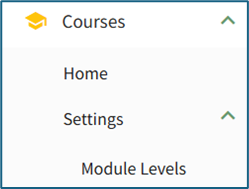
Courses Module - Main Menu Page Summaries | |
Page | Summary Description |
Home | The Courses Module homepage is the Manage Courses Page. This is where new courses are created and existing courses are edited. |
Settings | “Settings” within the Courses Module directs the user to the Manage Module Levels Page where module level permissions for the Courses Module are customized. |
Courses: Module Pages
Home Page: Manage Courses Page
The Courses Module homepage is the Manage Courses Page and is only visible to users with course-management permissions.
Systems users that do not have access to the Manage Courses homepage still have the capability to take courses in KAStrack.

The Manage Courses Page houses the Course Title Table, which lists all courses alphabetically. The New Course button below the header is used to create a new course. Courses can be managed and edited by clicking on the three-dot icon to the right of the course title.
How To: Create a New Course
Select “Home” under the Courses heading on the Main Menu, which takes the user to the Manage Courses Page. Courses will be listed alphabetically by title in the table.
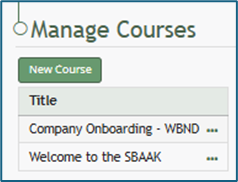
Select the green “New Course” button underneath the header to create a new course, opening the New Course modal.

Input the desired course title.
Input the maximum number of times a user can take the course. Leave this blank to allow for unlimited attempts.
If this course is being graded, indicate the value that will be considered passing here. A passing grade can be calculated as a percentage (%) or number (#) of correctly answered questions. Each question/question group has its own passing grade and can be set to be part of the total passing grade. (Ex: 70% or 7/10)
If the course is not being graded, input 0 for the passing grade.
Select the “Allow the student to navigate freely” checkbox to give permission to navigate the course freely (allowing users to skip ahead in the course). If this box is not selected, users will be forced to progress to the next page, but may still return to the previous pages
The course creator can customize review options for the users. Select “Only When Passed,” “Always,” or “Never” from the drop-down list to indicate your preference.
Selecting the “Show non-graded questions in the review” checkbox will include any non-graded questions in the post test review.
Click “Save” at the bottom of the modal to create the new course. The new course is now added to the table on the Course homepage.
How To: Access A Course's Details Page
Course Context Menu Item Explanations
The three dot icon to the right of a course title opens the Course Context Menu with links for quick actions. An explanation of each option on the course context menu is included below.
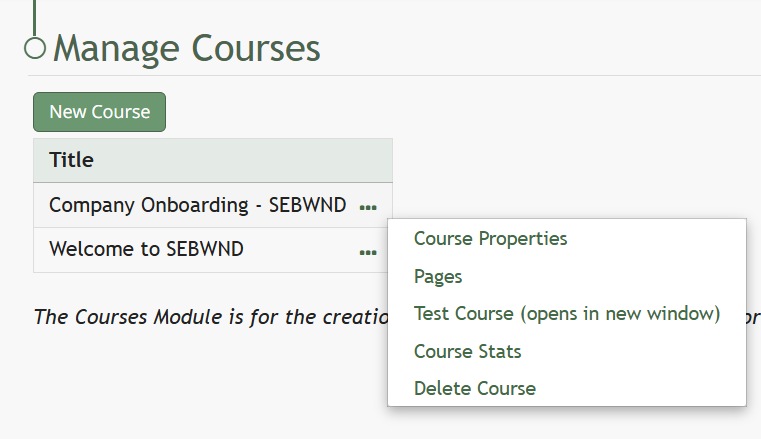
Course Context Menu Option Explanations | |||||||||||||||||||||||||||||||||
Options | Explanation | ||||||||||||||||||||||||||||||||
Course Properties | Selecting Course Properties from the context menu opens the Course Properties Modal, allowing the user to edit the original parameters that were selected when the course was created. The course name, tags, number of attempts, and settings for the course can be edited from the Course Properties Modal. How To: Edit Course PropertiesTo edit a course, open the Courses Module Home Page from the Main Menu and select the three dot (…) icon to the right of the course you wish to edit opening the course context menu.
Selecting “Course Properties” allows the user to edit the original parameters that were selected when the course was created.
This selection re-opens the same options as in the “New Course” modal to change the course name, tags, settings for grading, and post course review. How To: Create a New CourseSelect “Home” under the Courses heading on the Main Menu, which takes the user to the Manage Courses Page. Courses will be listed alphabetically by title in the table.
Select the green “New Course” button underneath the header to create a new course, opening the New Course modal.
Input the desired course title. Input the maximum number of times a user can take the course. Leave this blank to allow for unlimited attempts. If this course is being graded, indicate the value that will be considered passing here. A passing grade can be calculated as a percentage (%) or number (#) of correctly answered questions. Each question/question group has its own passing grade and can be set to be part of the total passing grade. (Ex: 70% or 7/10) If the course is not being graded, input 0 for the passing grade. Select the “Allow the student to navigate freely” checkbox to give permission to navigate the course freely (allowing users to skip ahead in the course). If this box is not selected, users will be forced to progress to the next page, but may still return to the previous pages The course creator can customize review options for the users. Select “Only When Passed,” “Always,” or “Never” from the drop-down list to indicate your preference. Click “Save” at the bottom of the modal to create the new course. The new course is now added to the table on the Course homepage. | ||||||||||||||||||||||||||||||||
Pages | Selecting the Pages option from the context menu opens the Course Details Page. The pages that have been created for the course are grouped in sections on the Course Details Page. How To: Edit Existing PagesOn the Course Overview Page, all pages of the course are displayed with previews of their page elements.
Click and drag the handle in the top left to move the page, click the trashcan on the top right to delete the page, or click the page and pencil icon to edit. To edit a slide after it is created, simply click on the slide, and the “Edit Custom Content” page will re-open to permit this.
“Preview Page (opens in new tab)” allows the user to visually see how a specific page in the course will reappear. “< Previous Page” and “Next Page >” allows the user to navigate between the pages of the course. Click “Close This Page and Add New Page” will activate the “New Page” modal. How To: Add Pages in a CourseTo add pages to a course, open the Courses Module Home Page from the Main Menu. Click the three-dot icon to the right of the course you wish to add pages to opening the Course Context Menu and select “Pages”.
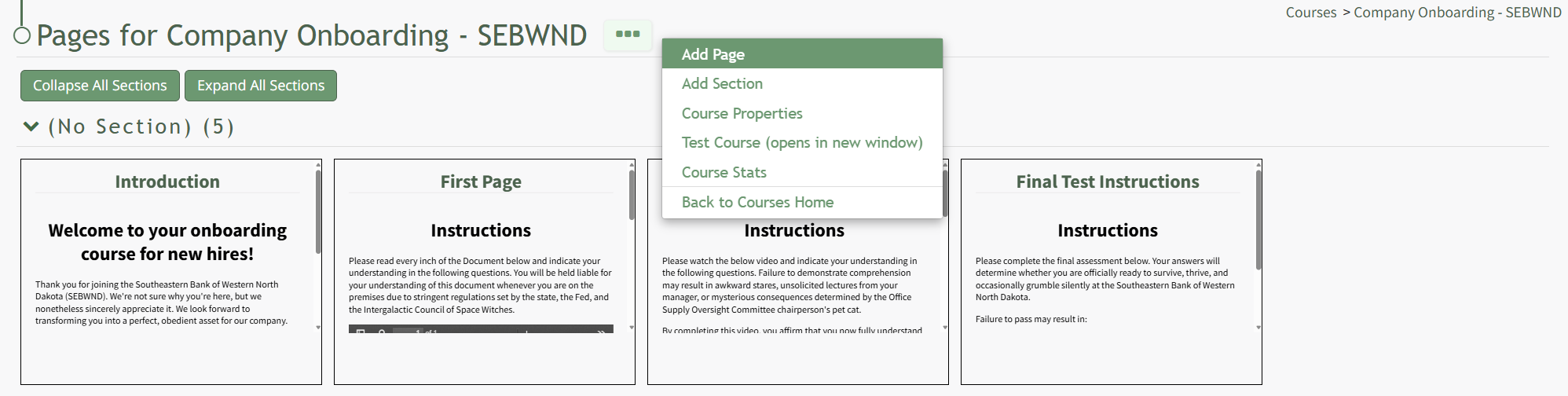
This opens the Course Overview Page Pages for Course Name Page. Selecting the three dot (…) icon to the right of the page header open a context menu. Selecting “Add Page” open the New Page modal.
Add a Title for the new page and select the desired navigation options.
If the course properties allow the user to navigate the course freely, in place of the checkbox options you will see “This course allows the user to navigate freely, so there are no per-page navigation options.” Select the “Save” button.
Selecting the three dot (…) icon displays a context menu that can be used to design the course.
| ||||||||||||||||||||||||||||||||
Test Course | Selecting the Test Course option from the context menu opens a trial run of the course with quiz questions. Testing the course will not impact course stats. How To: Take a Course in Test ModeTo take a course in test mode, select the three dot (…) icon to the right of the course title opening the course context menu and select "Test Course".
Select “Test Course (opens in new window)” to work through the course.
This will open the course in a new window, displaying the course from the user perspective. When taking the course in Test Mode, results will not be recorded and will not impact course stats. | ||||||||||||||||||||||||||||||||
Course Stats | Selecting the Course Stats option on the context menu opens the Course Stat Page which displays records of test taking attempts and access to an individual’s answers to course questions. How To: Access Course StatsTo access the stats associated with a specific course, open the Courses Module Home Page from the Main Menu. Existing courses are listed alphabetically in the table underneath the “New Course” button according to title.
To view a courses stats, select the three dot (…) icon to the right of the title and make a selection from the context menu.
“Course Stats” opens a page titled Stats for Name of Course that displays the records of every user’s test taking attempts. | ||||||||||||||||||||||||||||||||
Delete Course | Selecting the Delete Course option on the context menu will open a deletion confirmation modal. The modal displays a warning that will notify the user that deleting the course will “remove all pages and history of people taking the course.” Confirmation of deletion is required. If the course is a required activity for a certification, it will not be deleted unless certification course requirement is removed from the certificate. How To: Delete a Course
Existing courses are listed alphabetically in the table underneath the “New Course” button according to title. To manage a pre-existing course, select the three dot (…) icon to the right of the title and make a selection from the context menu.
If “Delete Course” is selected, the Delete Course modal requires the user to confirm that they wish to delete the course.
Deleting a course deletes the pages of the course and the course stats associated with it. If the course is a required activity for a certification, it will not be deleted unless certification course requirement is removed from the certificate. | ||||||||||||||||||||||||||||||||

In KAStrack, certifications with a required activity are used to assign courses to users. To require a user to complete a course, you must create a Certification in the People module with Required Activity set to "Course - KAStrack".
How To: Set Up a Course as a Certification
In order for a user to access a course, the course must be set as a required activity in a certification after the course is created in the People Module. This certification must then be assigned to the user.

To do so, select the Certifications page in the People Module. Click the plus-sign (+) button to the right of the Certification header which opens the Add Certification page.

There are five data categories that allow a user to customize preferences: General, Tracking Settings, Activities, Privacy, and Advanced Settings. Detailed information about each can be found in the People Module.

Set up a course as a certification, select “Course – KAStrack” as the Required Activity for the certification from the dropdown menu.
Any courses that have been created in KAStrack show on the Choose a Course dropdown menu. Select the course you want to assign.
Course Stats Page
The three dot (…) icon next to a course on the Manage Courses page allows a user to select “Course Stats,” which takes the user to the Course Stats page. The table on the Course Stats Page will show the user's name and certification. The Attempts (current) column indicates which attempt the user is one. The Attempts (total) column indicates the total number of attempts on the course made to date. The Current Attempt Status column will indicate if the user has not started the course, is in progress, is passed, or failed. When a course is in progress, the Current Attempt Status indicated which attempt the user is on and how many attempts total the user has.
For example, if a user attempted a course three times and failed every time, their supervisor could reset the course. When the user goes back to take the course, the Attempts (current) would show as 1 while the Attempts (total) would show as 4.
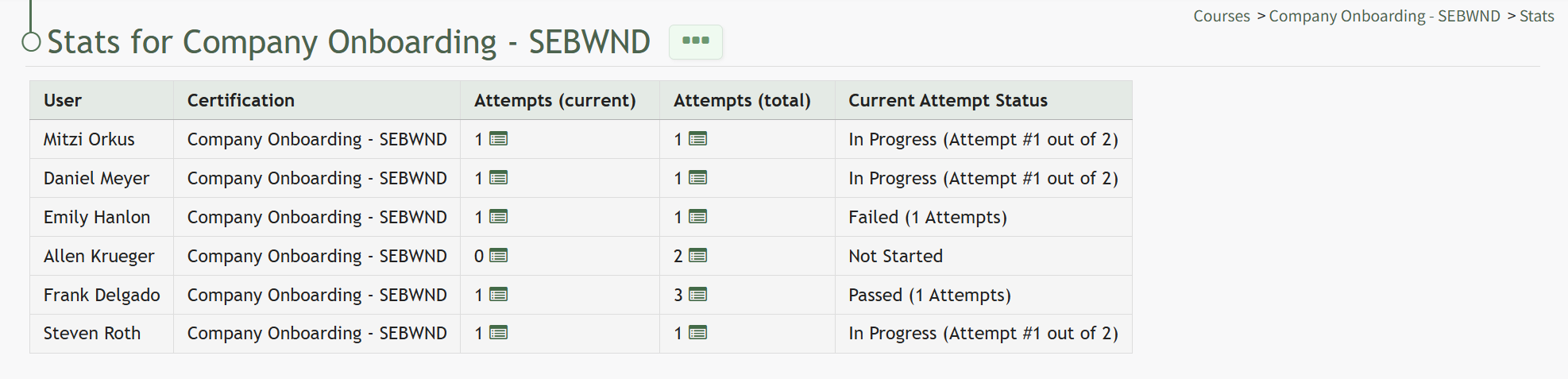
To the right of the number of attempts in the Attempts columns is an icon. Selecting the attempts icon  provides detailed information about an individual’s attempts on a specific course, showing the time the course was started/completed, the individual's grade on the attempt, and a link to review their submitted answers once a course is complete.
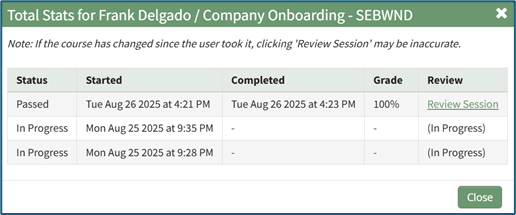
Clicking the Review Session link in the Review Column will allow an individual (with appropriate permissions) to see responses to all course questions, whether graded or ungraded.
To the right of the Course Stats Page header is a three dot (…) icon the opens to the Course Stat Page Context Menu. An explanation of all possible context menu options are included in the table below.
Course Context Menu Option Explanations | |||||||||||||||||||||||||||||||||
Options | Explanation | ||||||||||||||||||||||||||||||||
Videos | Selecting the Videos option from the context menu opens the Video Page for the specified course. Videos is only an option when reviewing the Course Stats Page for a course with required videos in the course. Videos are the only required activity that will show on the Course Stats Page Context Menu. This is helpful for when someone cannot access a video for any reason (such as a bad internet connection or their device can't support watching it) allowing an admin to move the user through the video independently of the course and to mark the video as complete, allowing the user to continue with course requirements. | ||||||||||||||||||||||||||||||||
Course Properties | Selecting Course Properties from the context menu opens the Course Properties modal, allowing the user to edit the original parameters that were selected when the course was created, re-opening the modal to change the course name, tags, settings for grading, and post course review. How To: Edit a Course's PropertiesTo edit a course, open the Courses Module Home Page from the Main Menu and select the three dot (…) icon to the right of the course you wish to edit opening the course context menu.
Selecting “Course Properties” allows the user to edit the original parameters that were selected when the course was created.
This selection re-opens the same options as in the “New Course” modal to change the course name, tags, settings for grading, and post course review. How To: Create a New CourseSelect “Home” under the Courses heading on the Main Menu, which takes the user to the Manage Courses Page. Courses will be listed alphabetically by title in the table.
Select the green “New Course” button underneath the header to create a new course, opening the New Course modal.
Input the desired course title. Input the maximum number of times a user can take the course. Leave this blank to allow for unlimited attempts. If this course is being graded, indicate the value that will be considered passing here. A passing grade can be calculated as a percentage (%) or number (#) of correctly answered questions. Each question/question group has its own passing grade and can be set to be part of the total passing grade. (Ex: 70% or 7/10) If the course is not being graded, input 0 for the passing grade. Select the “Allow the student to navigate freely” checkbox to give permission to navigate the course freely (allowing users to skip ahead in the course). If this box is not selected, users will be forced to progress to the next page, but may still return to the previous pages The course creator can customize review options for the users. Select “Only When Passed,” “Always,” or “Never” from the drop-down list to indicate your preference. Click “Save” at the bottom of the modal to create the new course. The new course is now added to the table on the Course homepage. | ||||||||||||||||||||||||||||||||
Pages | Selecting the Pages option from the context menu opens the individual pages that have been created for the course. How To: Edit Existing PagesOn the Course Overview Page, all pages of the course are displayed with previews of their page elements.
Click and drag the handle in the top left to move the page, click the trashcan on the top right to delete the page, or click the page and pencil icon to edit. To edit a slide after it is created, simply click on the slide, and the “Edit Custom Content” page will re-open to permit this.
“Preview Page (opens in new tab)” allows the user to visually see how a specific page in the course will reappear. “< Previous Page” and “Next Page >” allows the user to navigate between the pages of the course. Click “Close This Page and Add New Page” will activate the “New Page” modal. How To: Add Pages in a New/Existing CourseTo add pages to a course, open the Courses Module Home Page from the Main Menu. Click the three-dot icon to the right of the course you wish to add pages to opening the Course Context Menu and select “Pages”.
This opens the Course Overview Page Pages for Course Name Page. Selecting the three dot (…) icon to the right of the page header open a context menu. Selecting “Add Page” open the New Page modal.
Add a Title for the new page and select the desired navigation options.
If the course properties allow the user to navigate the course freely, in place of the checkbox options you will see “This course allows the user to navigate freely, so there are no per-page navigation options.” Select the “Save” button.
Selecting the three dot (…) icon displays a context menu that can be used to design the course.
| ||||||||||||||||||||||||||||||||
Test Course | Selecting the Test Course option from the context menu opens a trial run of the course with quiz questions. Testing the course will not impact course stats. How To: Take a Course in Test ModeTo take a course in test mode, select the three dot (…) icon to the right of the course title opening the course context menu and select "Test Course".
Select “Test Course (opens in new window)” to work through the course.
This will open the course in a new window, displaying the course from the user perspective. When taking the course in Test Mode, results will not be recorded and will not impact course stats. | ||||||||||||||||||||||||||||||||
Course Stats | Selecting the Course Stats option on the context menu opens the Course Stat Page which displays records of test taking attempts and access to an individual’s answers to course questions. How To: Access Course StatsTo access the stats associated with a specific course, open the Courses Module Home Page from the Main Menu. Existing courses are listed alphabetically in the table underneath the “New Course” button according to title.
To view a courses stats, select the three dot (…) icon to the right of the title and make a selection from the context menu.
“Course Stats” opens a page titled Stats for Name of Course that displays the records of every user’s test taking attempts. | ||||||||||||||||||||||||||||||||
Delete Course | Selecting the Delete Course option on the context menu will open a deletion confirmation modal. The modal displays a warning that will notify the user that deleting the course will “remove all pages and history of people taking the course.” Confirmation of deletion is required. If the course is a required activity for a certification, it will not be deleted unless certification course requirement is removed from the certificate. How To: Delete a Course
Existing courses are listed alphabetically in the table underneath the “New Course” button according to title. To manage a pre-existing course, select the three dot (…) icon to the right of the title and make a selection from the context menu.
If “Delete Course” is selected, the Delete Course modal requires the user to confirm that they wish to delete the course.
Deleting a course deletes the pages of the course and the course stats associated with it. If the course is a required activity for a certification, it will not be deleted unless certification course requirement is removed from the certificate. | ||||||||||||||||||||||||||||||||
If a user fails a course after the maximum number of attempts has been reached, the course can be reset on the Course Stat page by selecting “Reset Course.”

How To: Reset a Course after the Maximum Number of Attempts are Made
Settings Page: Module Levels
The Module Levels Tab of Settings Page can be accessed from the Main Menu. The system default module levels for the module are visible in the Module Levels Table. New module levels with customizable permissions can be created and managed on this tab.
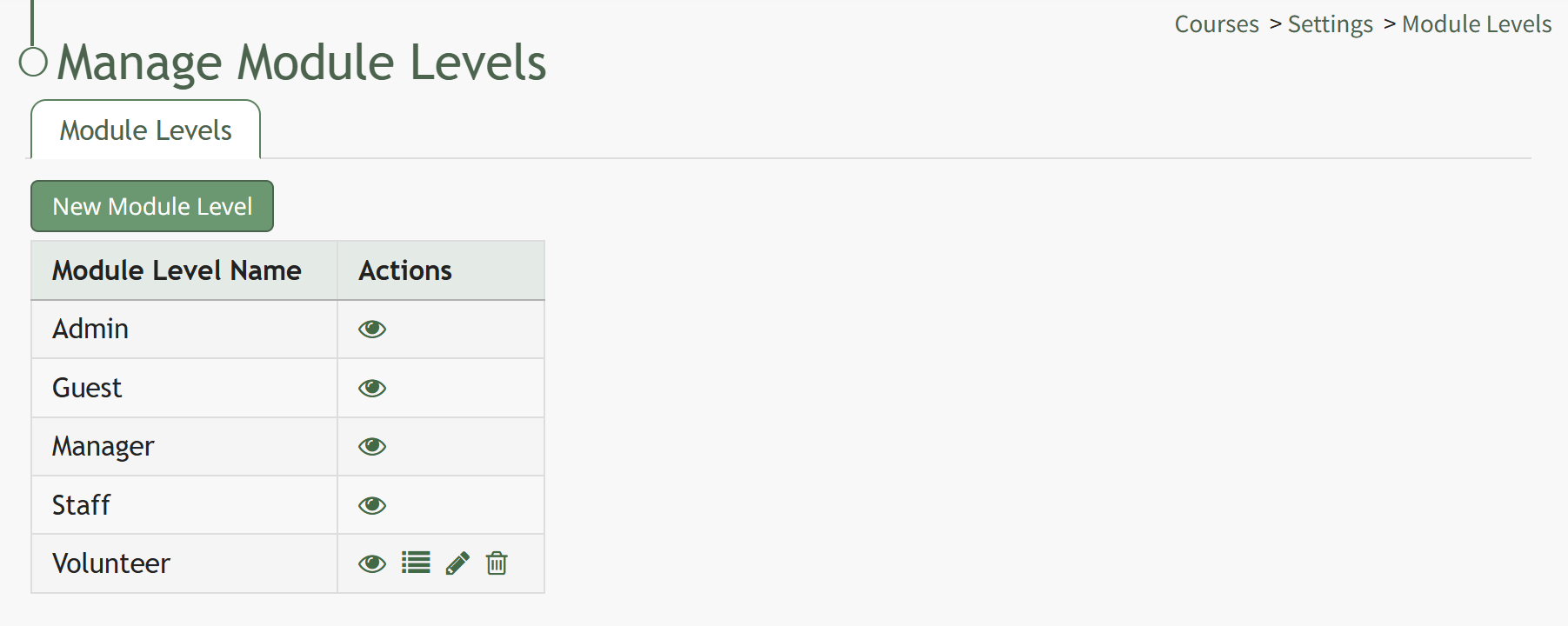
There are four system default module levels associated with the Courses Module. An explanation of the permissions associated with each default module level are shown in the Courses Module Level Permissions Table below.
System default module levels cannot be customized.
Courses Module Level Permissions Table | |
Module Level | Permissions |
Admin | Can manage rolls, add/edit/delete courses, see the stats page, view all course stats, manual reset course, test course, can take course on behalf of anyone |
Guest | None |
Manager | add/edit/delete courses, stats, manual reset course, test course |
Staff | None |
New Module Levels can be created in order to customize module level permissions. An explanation of the icons associated with customized module levels have been provided in the table below.
Module Level Customization Icons | |
Icon | Explanation |
| The eyeball icon allows you to view users assigned to the module level as well as the permissions assigned to them. |
| The bulleted list icon allows you to assign permissions to customized module levels. |
| The pencil icon opens the Edit Module Level Modal. |
| The trashcan icon opens the Delete Module Level Confirmation Modal. |


How To: Create A New Module Level (Courses Module)

Selecting “New Module Level” on the Manage Module Levels page opens the New Module Level modal. Input the name of the customized model level and select “Save.” Module levels will be listed alphabetically.

Users have administrative controls for customized module levels. Select Permissions (the bullet point list icon to the right of the eye) in order to identify the permissions the newly created Module Level would have within the Courses Module.

Access levels for all modules can also be managed in the Site Settings Module under Access Levels.
A complete list of all permissions associated with the Courses Module have been provided below.
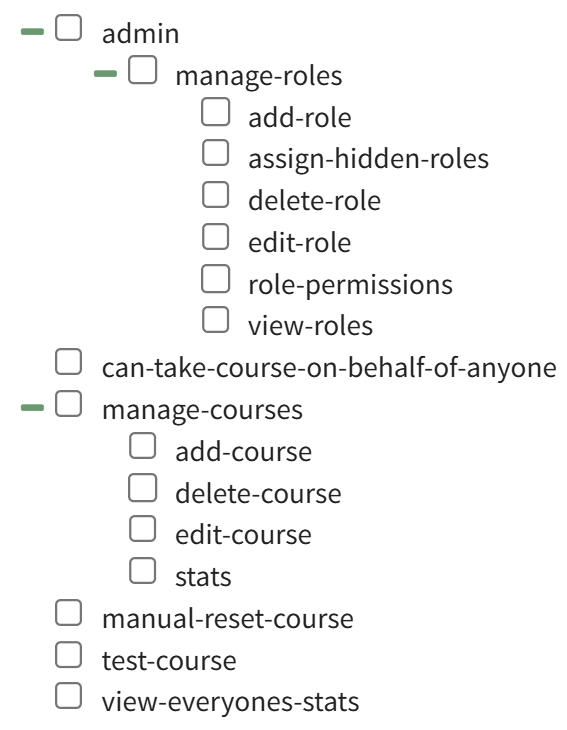
A Course's Details Page
Every Course created in KAStrack will have it's own Course Details Page.
How To: Access A Course's Details Page
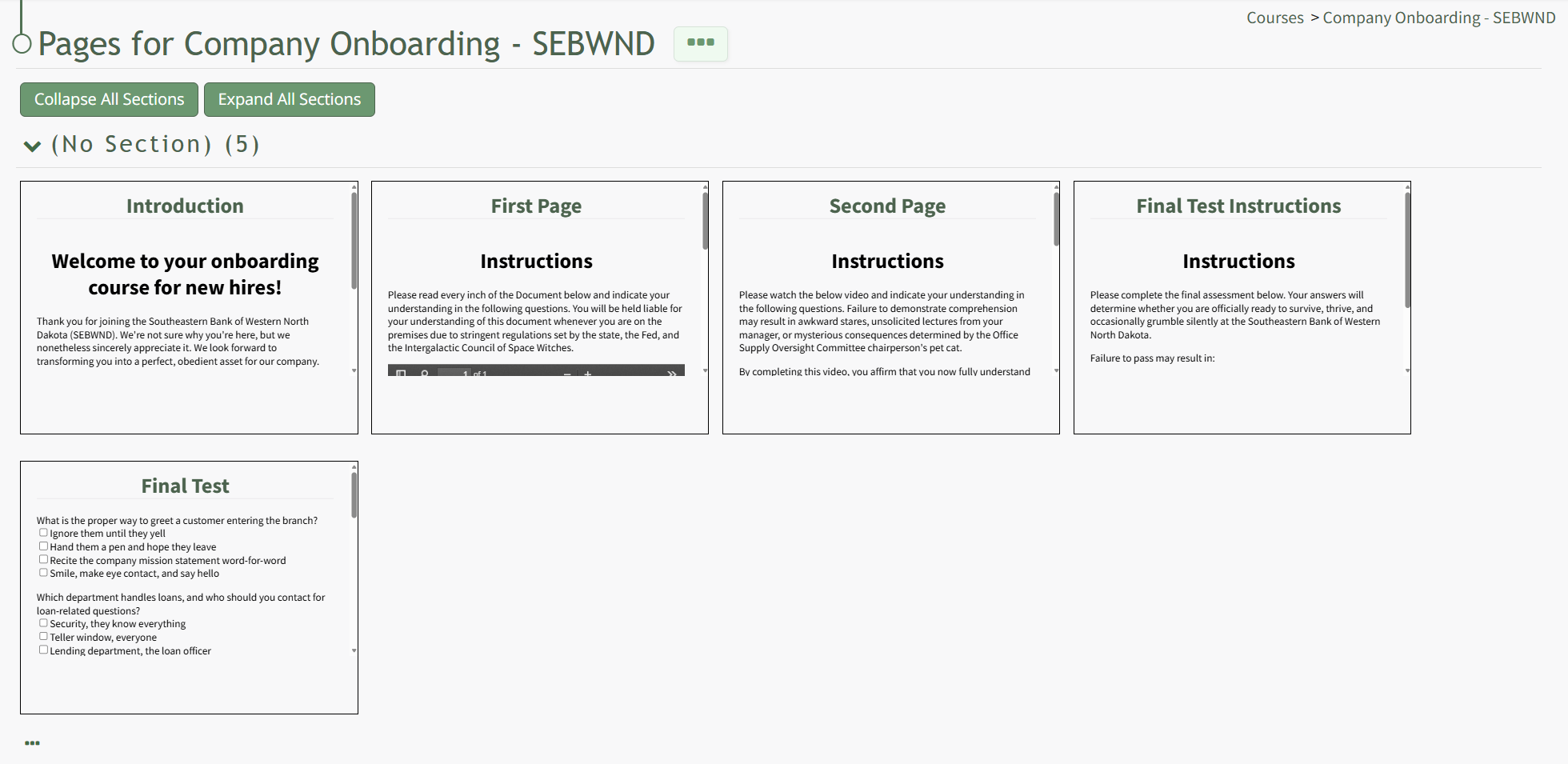
The three-dot icon to the right of the page header and at the bottom of the page can be clicked to open the Course Details Page Context Menu. An explanation of each option in the Course Details Page Context Menu has been included in the table below.
Course Detail Page Context Menu Option Explanations | |||||||||||||||||||||||||||||||||
Option | Explanation | ||||||||||||||||||||||||||||||||
Add Page | Selecting Add Page from the context menu opens the New Page Modal, where a user can title the new page, identify the section it belongs in, and select the navigation options for the page. How To: Add Pages in a CourseTo add pages to a course, open the Courses Module Home Page from the Main Menu. Click the three-dot icon to the right of the course you wish to add pages to opening the Course Context Menu and select “Pages”.
This opens the Course Overview Page Pages for Course Name Page. Selecting the three dot (…) icon to the right of the page header open a context menu. Selecting “Add Page” open the New Page modal.
Add a Title for the new page and select the desired navigation options.
If the course properties allow the user to navigate the course freely, in place of the checkbox options you will see “This course allows the user to navigate freely, so there are no per-page navigation options.” Select the “Save” button.
Selecting the three dot (…) icon displays a context menu that can be used to design the course.
| ||||||||||||||||||||||||||||||||
Add Section | Selecting Add Section from the context menu opens the Add Section Modal. How To: Add a Section to a Course | ||||||||||||||||||||||||||||||||
Course Properties | Selecting Course Properties from the context menu opens the Course Properties Modal, allowing the user to edit the original parameters that were selected when the course was created. The course name, tags, number of attempts, and settings for the course can be edited from the Course Properties Modal. How To: Edit Course PropertiesTo edit a course, open the Courses Module Home Page from the Main Menu and select the three dot (…) icon to the right of the course you wish to edit opening the course context menu.
Selecting “Course Properties” allows the user to edit the original parameters that were selected when the course was created.
This selection re-opens the same options as in the “New Course” modal to change the course name, tags, settings for grading, and post course review. How To: Create a New CourseSelect “Home” under the Courses heading on the Main Menu, which takes the user to the Manage Courses Page. Courses will be listed alphabetically by title in the table.
Select the green “New Course” button underneath the header to create a new course, opening the New Course modal.
Input the desired course title. Input the maximum number of times a user can take the course. Leave this blank to allow for unlimited attempts. If this course is being graded, indicate the value that will be considered passing here. A passing grade can be calculated as a percentage (%) or number (#) of correctly answered questions. Each question/question group has its own passing grade and can be set to be part of the total passing grade. (Ex: 70% or 7/10) If the course is not being graded, input 0 for the passing grade. Select the “Allow the student to navigate freely” checkbox to give permission to navigate the course freely (allowing users to skip ahead in the course). If this box is not selected, users will be forced to progress to the next page, but may still return to the previous pages The course creator can customize review options for the users. Select “Only When Passed,” “Always,” or “Never” from the drop-down list to indicate your preference. Click “Save” at the bottom of the modal to create the new course. The new course is now added to the table on the Course homepage. | ||||||||||||||||||||||||||||||||
Test Course | Selecting the Test Course option from the context menu opens a trial run of the course with quiz questions. Testing the course will not impact course stats. How To: Take a Course in Test ModeTo take a course in test mode, select the three dot (…) icon to the right of the course title opening the course context menu and select "Test Course".
Select “Test Course (opens in new window)” to work through the course.
This will open the course in a new window, displaying the course from the user perspective. When taking the course in Test Mode, results will not be recorded and will not impact course stats. | ||||||||||||||||||||||||||||||||
Course Stats | Selecting the Course Stats option on the context menu opens the Course Stat Page which displays records of test taking attempts and access to an individual’s answers to course questions. How To: Access Course StatsTo access the stats associated with a specific course, open the Courses Module Home Page from the Main Menu. Existing courses are listed alphabetically in the table underneath the “New Course” button according to title.
To view a courses stats, select the three dot (…) icon to the right of the title and make a selection from the context menu.
“Course Stats” opens a page titled Stats for Name of Course that displays the records of every user’s test taking attempts. | ||||||||||||||||||||||||||||||||
Back to Courses Home | Selecting Back to Courses Home on the context menu will take the user back to the Courses Home Page, the Manage Courses Page. | ||||||||||||||||||||||||||||||||
Hovering your cursor over a page shades the specified page revealing icons that can be utilized for page management. An explanation of the icons found on an individual page are explained in the Couse Page Icon Explanation Table below.
Courses: Supplemental Resources
There are no email alerts sent by the system for the Courses Module.
Complete List of Courses Module How Tos
How To: Access Course Stats
To access the stats associated with a specific course, open the Courses Module Home Page from the Main Menu. Existing courses are listed alphabetically in the table underneath the “New Course” button according to title.

To view a courses stats, select the three dot (…) icon to the right of the title and make a selection from the context menu.
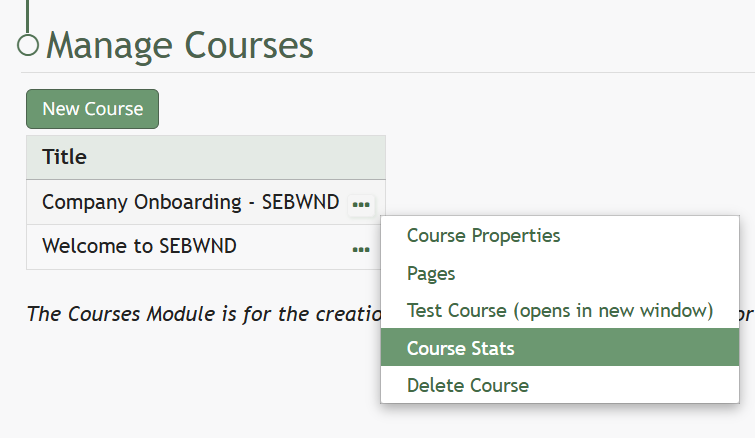
“Course Stats” opens a page titled Stats for Name of Course that displays the records of every user’s test taking attempts.
How To: Add Custom Course Content
Existing courses are listed alphabetically in the table underneath the “New Course” button according to title on the Courses Module Home Page.

To manage a pre-existing course, select the three dot (…) icon to the right of the title and make a selection from the context menu.
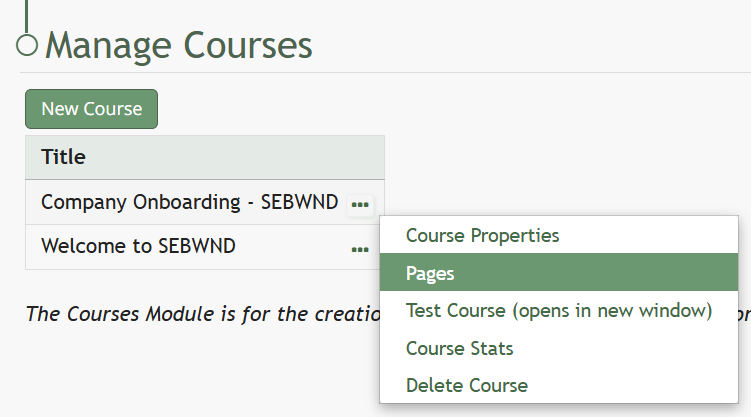
Selecting “Pages” allows the course creator to see and modify the content of the course.

“Pages” brings the course creator to the course homepage, titled Pages for (Name of Course). The three dot (…) to the right of the header and at the bottom of the page are identical and permit the same selections.
How To: Add Pages in a New / Existing Course
To add pages to a course, open the Courses Module Home Page from the Main Menu. Click the three-dot icon to the right of the course you wish to add pages to opening the Course Context Menu and select “Pages”.
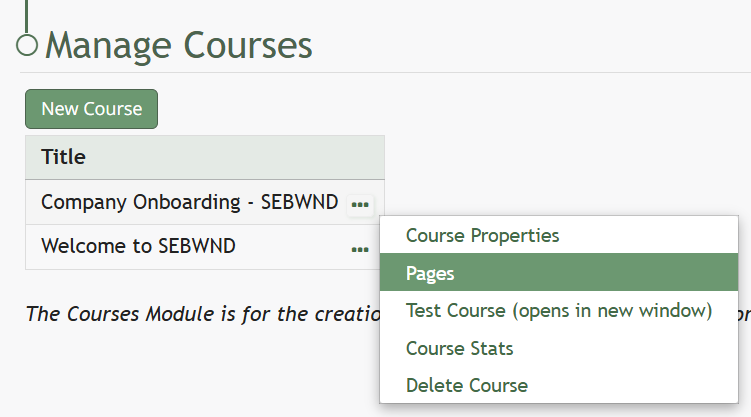
This opens the Course Overview Page Pages for Course Name Page. Selecting the three dot (…) icon to the right of the page header open a context menu. Selecting “Add Page” open the New Page modal.
Add a Title for the new page and select the desired navigation options.

If the course properties allow the user to navigate the course freely, in place of the checkbox options you will see “This course allows the user to navigate freely, so there are no per-page navigation options.” Select the “Save” button.
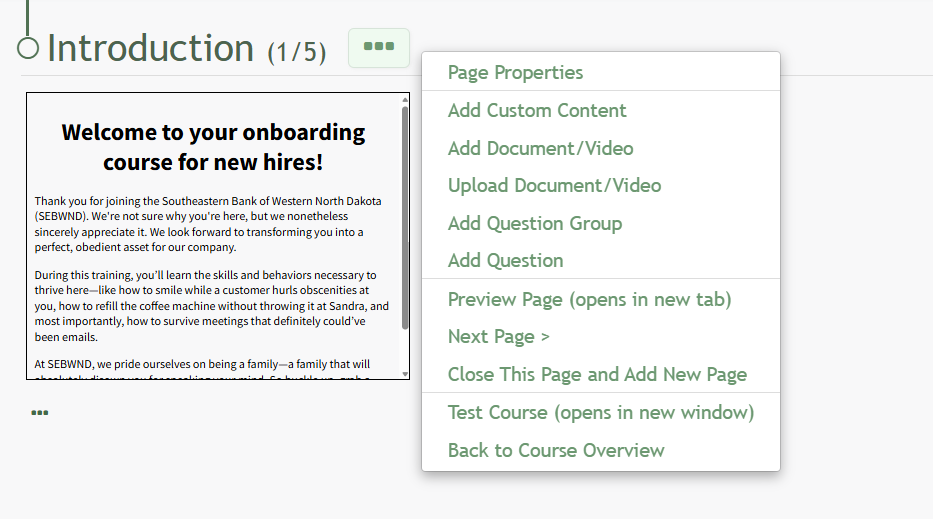
Selecting the three dot (…) icon displays a context menu that can be used to design the course.
Course Page Context Menu Option Explanations | |
Option | Explanation |
Page Properties | “Page Properties” will opens the Page Properties Modal which allows you to edit the title, section and navigation options for the specific page. |
Add Custom Content | “Add Custom Content” will open the Add Custom Content modal where one can input text, tables, images, videos and hyperlinks. Any information or added files will appear as individual slides, allowing for customizable edits, while still appearing together on one page. How To: Add Custom Course Content{{@240}} |
Add Document/Video | “Add Document/Video” opens the Add Document/Video modal that allows the user to select a previously uploaded document or video from a dropdown list. Any documents or videos in the Documents Module that the user has access to will show in the dropdown list.
The checkbox allows the user to designate whether they wish to use the latest approved revision of the item selected. Click “Save” and the selection will appear as a slide on the course homepage. |
Upload Document Video | “Upload Document/Video” will open an Upload File modal. Any document or video uploaded through this modal will not be visible in the Documents Module unless manually added to Documents. |
Add Question Groups | How To: Add Questions Groups in A Course{{@235}} |
Add Question | How To: Add Different Question Types{{@236}} |
How To: Edit Existing Pages
On the Course Overview Page, all pages of the course are displayed with previews of their page elements.

Click and drag the handle in the top left to move the page, click the trashcan on the top right to delete the page, or click the page and pencil icon to edit.
To edit a slide after it is created, simply click on the slide, and the “Edit Custom Content” page will re-open to permit this.
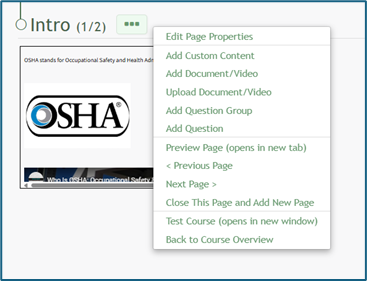
“Preview Page (opens in new tab)” allows the user to visually see how a specific page in the course will reappear.
“< Previous Page” and “Next Page >” allows the user to navigate between the pages of the course.
“Close This Page and Add New Page” closes the current page and opens the “New Page” modal to create a new page.
“Test Course (opens in new window)” allows the course creator to go through the course without it being attached to a certification and without impacting their course stats.
“Back to Course Overview” consolidates slides onto pages and redirects the user to the course homepage.
Click “Close This Page and Add New Page” will activate the “New Page” modal.
How To: Add Different Question Types
The “Add Question” popup allows a course creator to select from three question types:
True/False, Multiple Choice, or Free Text.

For multiple choice questions, the user can select to randomize the order of the answers.
A question can have multiple correct answers. If a question has multiple correct answers, all must be selected in order to receive full credit. The phrases “All of the above” and “none of the above” can be used as answers.
Both “All of the above” and “None of the above” can be used as an answer choice. If those two answer choices are written exactly as shown (without quotations), KAStrack will not randomize their placement. They will always be shown as the final multiple-choice answer options.
Answer Notes can be used to include extra information about an answer is correct or why certain answers are wrong. They are shown to users in the Course Review.
How To: Add Pages in a Course
To add pages to a course, open the Courses Module Home Page from the Main Menu. Click the three-dot icon to the right of the course you wish to add pages to opening the Course Context Menu and select “Pages”.
This opens the Course Overview Page Pages for Course Name Page. Selecting the three dot (…) icon to the right of the page header open a context menu. Selecting “Add Page” open the New Page modal.
Add a Title for the new page and select the desired navigation options.
If the course properties allow the user to navigate the course freely, in place of the checkbox options you will see “This course allows the user to navigate freely, so there are no per-page navigation options.” Select the “Save” button.
Selecting the three dot (…) icon displays a context menu that can be used to design the course.
Course Page Context Menu Option Explanations | |
Option | Explanation |
Page Properties | “Page Properties” will opens the Page Properties Modal which allows you to edit the title, section and navigation options for the specific page. |
Add Custom Content | “Add Custom Content” will open the Add Custom Content modal where one can input text, tables, images, videos and hyperlinks. Any information or added files will appear as individual slides, allowing for customizable edits, while still appearing together on one page. How To: Add Custom Course ContentExisting courses are listed alphabetically in the table underneath the “New Course” button according to title on the Courses Module Home Page.
To manage a pre-existing course, select the three dot (…) icon to the right of the title and make a selection from the context menu.
Selecting “Pages” allows the course creator to see and modify the content of the course.
“Pages” brings the course creator to the course homepage, titled Pages for (Name of Course). The three dot (…) to the right of the header and at the bottom of the page are identical and permit the same selections. How To: Add Pages in a New / Existing Course{{@244}} How To: Edit Existing Pages{{@234}} |
Add Document/Video | “Add Document/Video” opens the Add Document/Video modal that allows the user to select a previously uploaded document or video from a dropdown list. Any documents or videos in the Documents Module that the user has access to will show in the dropdown list.
The checkbox allows the user to designate whether they wish to use the latest approved revision of the item selected. Click “Save” and the selection will appear as a slide on the course homepage. |
Upload Document Video | “Upload Document/Video” will open an Upload File modal. Any document or video uploaded through this modal will not be visible in the Documents Module unless manually added to Documents. |
Add Question Groups | How To: Add Questions Groups in A CourseOn the Course Overview Page, all pages of the course are displayed with previews of their page elements. Use the dropdown menu to add a question group / question to the course.
“Add Question Group” opens the Add Question Group modal and allows the user to user to create a custom group of questions to be used for assessment purposes
The user can choose for all questions in the Question Group to be asked or for a specific number of questions from the question group to be randomly generated in the course. (Leave this blank to show all questions.) “Save” opens the Edit Question Group modal, allowing users to add questions.
Once a question group has been created, it will appear as a slide on the page being created. The slide can be dragged and dropped by clicking the multi-dimensional arrow that appears at the upper left-hand corner. After the question group has been saved, you can continue to add questions to it. If you chose not to show all the questions in a question group, the questions shown are randomly selected. Clicking the “+” to the right of Questions opens the “Add Question” modal, which can also be accessed directly on the New Page dropdown menu. |
Add Question | How To: Add Different Question TypesThe “Add Question” popup allows a course creator to select from three question types:
For multiple choice questions, the user can select to randomize the order of the answers. A question can have multiple correct answers. If a question has multiple correct answers, all must be selected in order to receive full credit. The phrases “All of the above” and “none of the above” can be used as answers. Both “All of the above” and “None of the above” can be used as an answer choice. If those two answer choices are written exactly as shown (without quotations), KAStrack will not randomize their placement. They will always be shown as the final multiple-choice answer options. Answer Notes can be used to include extra information about an answer is correct or why certain answers are wrong. They are shown to users in the Course Review. |
How To: Add Questions Groups in A Course
On the Course Overview Page, all pages of the course are displayed with previews of their page elements. Use the dropdown menu to add a question group / question to the course.
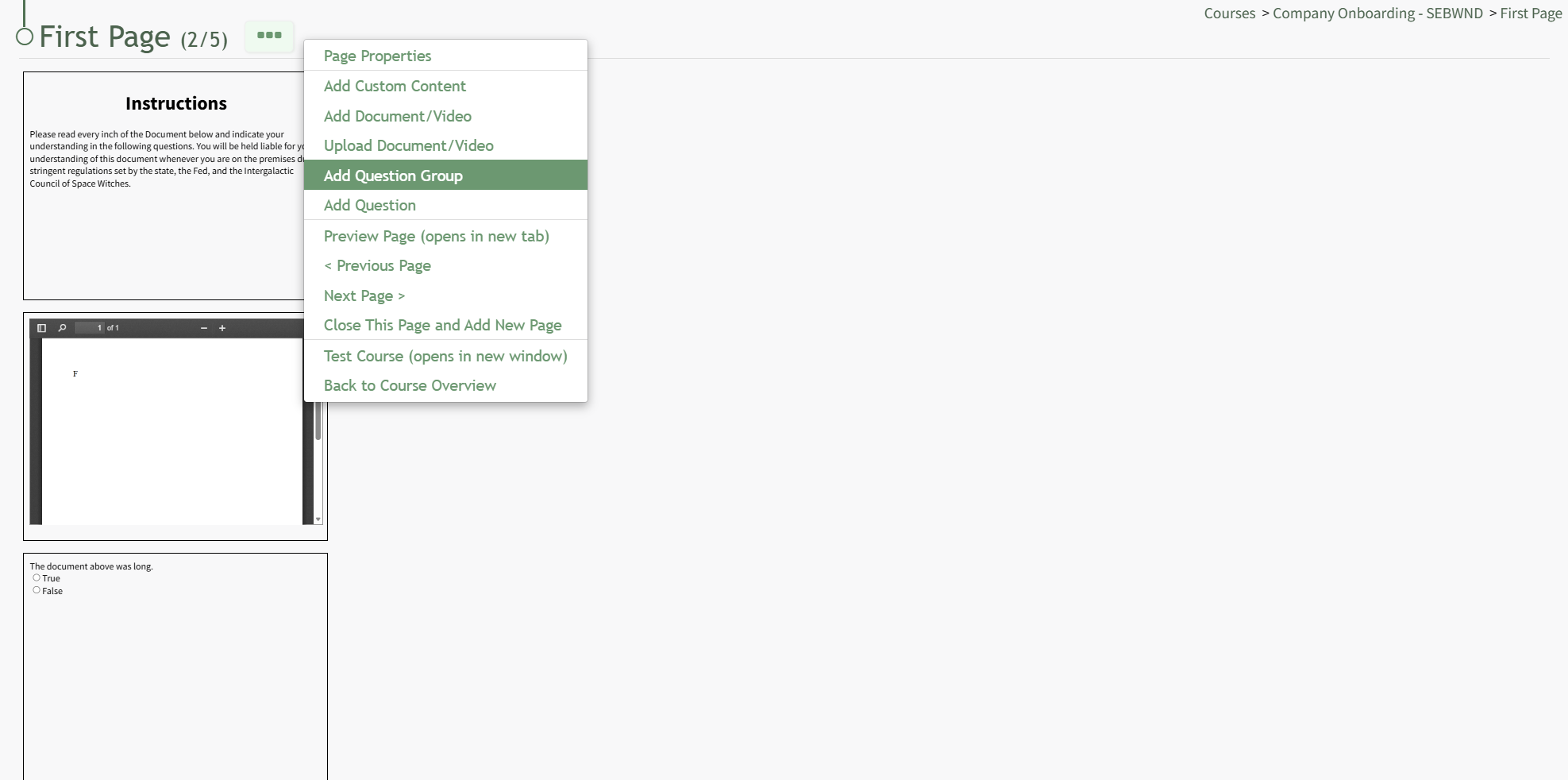
“Add Question Group” opens the Add Question Group modal and allows the user to user to create a custom group of questions to be used for assessment purposes

The user can choose for all questions in the Question Group to be asked or for a specific number of questions from the question group to be randomly generated in the course. (Leave this blank to show all questions.)
“Save” opens the Edit Question Group modal, allowing users to add questions.

Once a question group has been created, it will appear as a slide on the page being created. The slide can be dragged and dropped by clicking the multi-dimensional arrow that appears at the upper left-hand corner.
After the question group has been saved, you can continue to add questions to it. If you chose not to show all the questions in a question group, the questions shown are randomly selected.
Clicking the “+” to the right of Questions opens the “Add Question” modal, which can also be accessed directly on the New Page dropdown menu.
How To: Create a New Course
Select “Home” under the Courses heading on the Main Menu, which takes the user to the Manage Courses Page. Courses will be listed alphabetically by title in the table.
Select the green “New Course” button underneath the header to create a new course, opening the New Course modal.
Input the desired course title.
Input the maximum number of times a user can take the course. Leave this blank to allow for unlimited attempts.
If this course is being graded, indicate the value that will be considered passing here. A passing grade can be calculated as a percentage (%) or number (#) of correctly answered questions. Each question/question group has its own passing grade and can be set to be part of the total passing grade. (Ex: 70% or 7/10)
If the course is not being graded, input 0 for the passing grade.
Select the “Allow the student to navigate freely” checkbox to give permission to navigate the course freely (allowing users to skip ahead in the course). If this box is not selected, users will be forced to progress to the next page, but may still return to the previous pages
The course creator can customize review options for the users. Select “Only When Passed,” “Always,” or “Never” from the drop-down list to indicate your preference.
Selecting the “Show non-graded questions in the review” checkbox will include any non-graded questions in the post test review.
Click “Save” at the bottom of the modal to create the new course. The new course is now added to the table on the Course homepage.
How To: Create a New Module Level (Courses Module)
Selecting “New Module Level” on the Manage Module Levels page opens the New Module Level modal. Input the name of the customized model level and select “Save.” Module levels will be listed alphabetically.
Users have administrative controls for customized module levels. Select Permissions (the bullet point list icon to the right of the eye) in order to identify the permissions the newly created Module Level would have within the Courses Module.
Access levels for all modules can also be managed in the Site Settings Module under Access Levels.
How To: Delete a Course
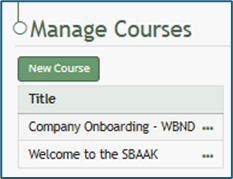
Existing courses are listed alphabetically in the table underneath the “New Course” button according to title.
To manage a pre-existing course, select the three dot (…) icon to the right of the title and make a selection from the context menu.
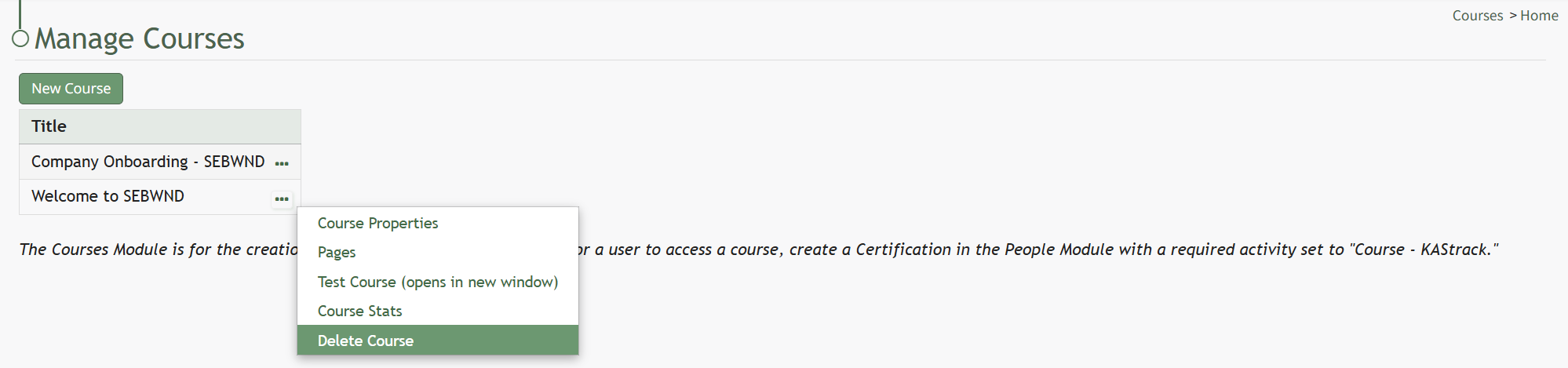
If “Delete Course” is selected, the Delete Course modal requires the user to confirm that they wish to delete the course.

Deleting a course deletes the pages of the course and the course stats associated with it.
If the course is a required activity for a certification, it will not be deleted unless certification course requirement is removed from the certificate.
How To: Edit Course Properties
To edit a course, open the Courses Module Home Page from the Main Menu and select the three dot (…) icon to the right of the course you wish to edit opening the course context menu.
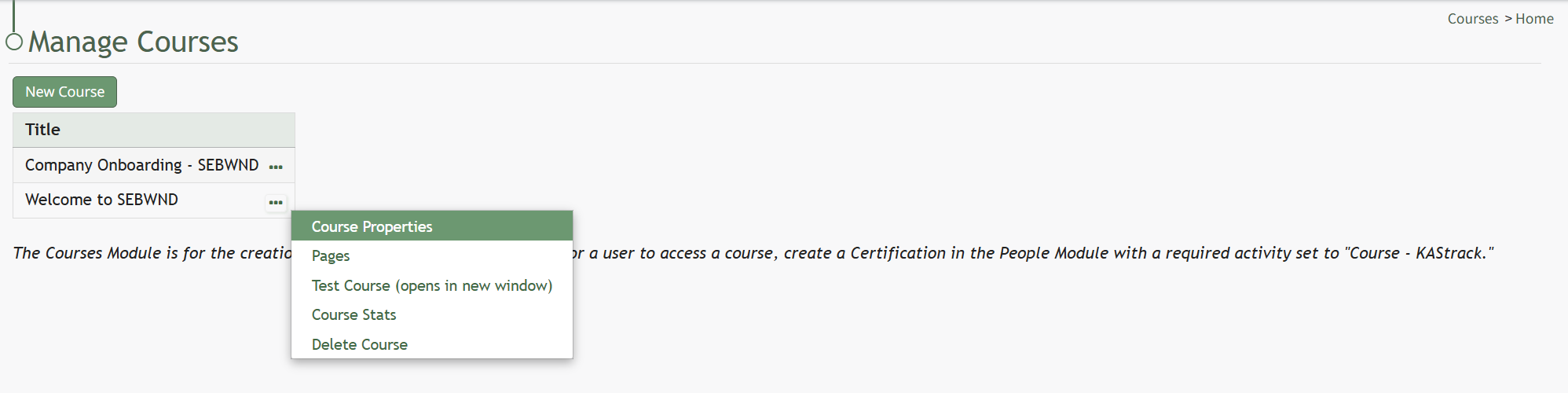
Selecting “Course Properties” allows the user to edit the original parameters that were selected when the course was created.
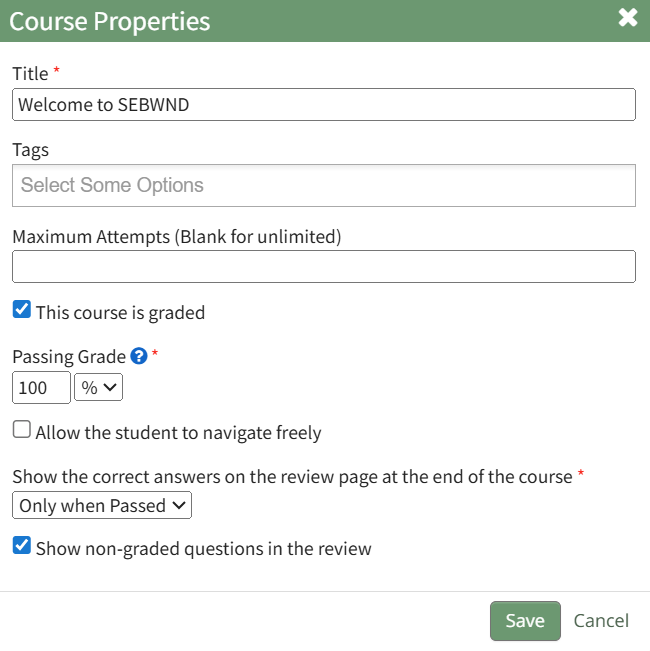
This selection re-opens the same options as in the “New Course” modal to change the course name, tags, settings for grading, and post course review.
How To: Create a New Course
Select “Home” under the Courses heading on the Main Menu, which takes the user to the Manage Courses Page. Courses will be listed alphabetically by title in the table.
Select the green “New Course” button underneath the header to create a new course, opening the New Course modal.
Input the desired course title.
Input the maximum number of times a user can take the course. Leave this blank to allow for unlimited attempts.
If this course is being graded, indicate the value that will be considered passing here. A passing grade can be calculated as a percentage (%) or number (#) of correctly answered questions. Each question/question group has its own passing grade and can be set to be part of the total passing grade. (Ex: 70% or 7/10)
If the course is not being graded, input 0 for the passing grade.
Select the “Allow the student to navigate freely” checkbox to give permission to navigate the course freely (allowing users to skip ahead in the course). If this box is not selected, users will be forced to progress to the next page, but may still return to the previous pages
The course creator can customize review options for the users. Select “Only When Passed,” “Always,” or “Never” from the drop-down list to indicate your preference.
Selecting the “Show non-graded questions in the review” checkbox will include any non-graded questions in the post test review.
Click “Save” at the bottom of the modal to create the new course. The new course is now added to the table on the Course homepage.
How To: Edit Existing Pages
On the Course Overview Page, all pages of the course are displayed with previews of their page elements.
Click and drag the handle in the top left to move the page, click the trashcan on the top right to delete the page, or click the page and pencil icon to edit.
To edit a slide after it is created, simply click on the slide, and the “Edit Custom Content” page will re-open to permit this.
“Preview Page (opens in new tab)” allows the user to visually see how a specific page in the course will reappear.
“< Previous Page” and “Next Page >” allows the user to navigate between the pages of the course.
“Close This Page and Add New Page” closes the current page and opens the “New Page” modal to create a new page.
“Test Course (opens in new window)” allows the course creator to go through the course without it being attached to a certification and without impacting their course stats.
“Back to Course Overview” consolidates slides onto pages and redirects the user to the course homepage.
Click “Close This Page and Add New Page” will activate the “New Page” modal.
How To: Set Up a Course as a Certification
In order for a user to access a course, the course must be set as a required activity in a certification after the course is created in the People Module. This certification must then be assigned to the user.
To do so, select the Certifications page in the People Module. Click the plus-sign (+) button to the right of the Certification header which opens the Add Certification page.
There are five data categories that allow a user to customize preferences: General, Tracking Settings, Activities, Privacy, and Advanced Settings. Detailed information about each can be found in the People Module.
Set up a course as a certification, select “Course – KAStrack” as the Required Activity for the certification from the dropdown menu.
Any courses that have been created in KAStrack show on the Choose a Course dropdown menu. Select the course you want to assign.
How To: Take the Course in Test Mode
To take a course in test mode, select the three dot (…) icon to the right of the course title opening the course context menu and select "Test Course".
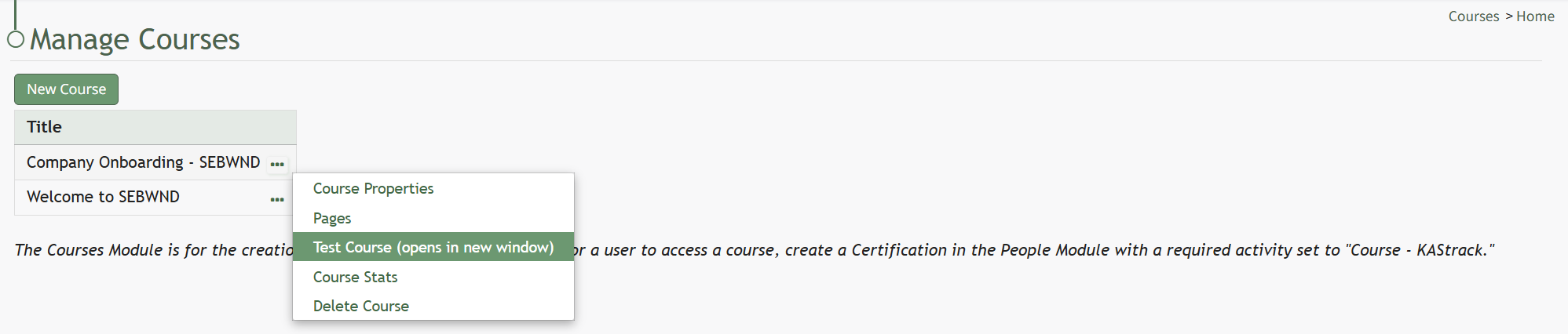
Select “Test Course (opens in new window)” to work through the course.

This will open the course in a new window, displaying the course from the user perspective.
When taking the course in Test Mode, results will not be recorded and will not impact course stats.
How To: Upload a Video / Document in a Course
To upload a video/document in a course, open the Courses Module Home Page from the Main Menu. Click the three-dot icon to the right of the course title opening the Course Context Menu and select “Pages”.
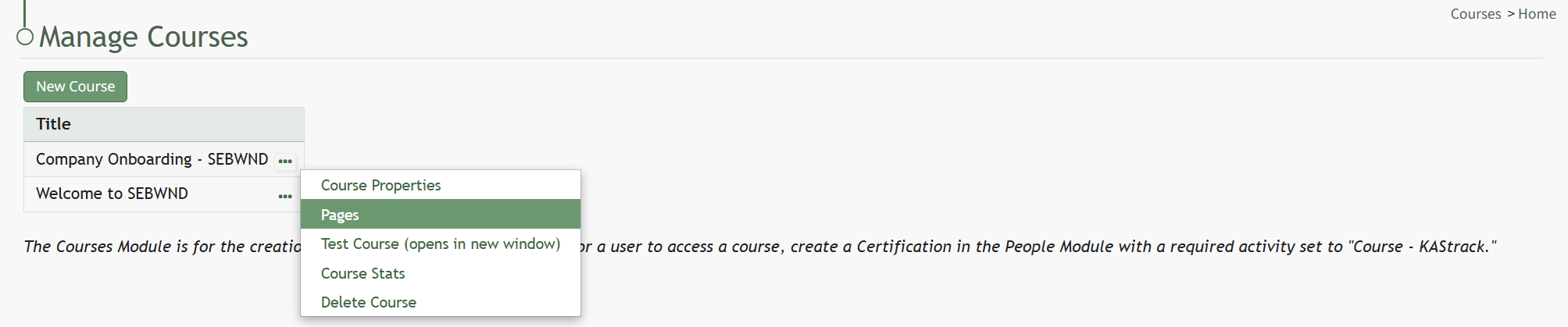
This opens the Course Overview Page Pages for Course Name Page. Selecting the three dot (…) icon to the right of the page header open a context menu.

“Add Document/Video” opens the Add Document/Video modal that allows the user to select a previously uploaded document or video from a dropdown list. Any documents or videos in the Documents Module that the user has access to will show in the dropdown list.

The checkbox allows the user to designate whether they wish to use the latest approved revision of the item selected. Click “Save” and the selection will appear as a slide on the course homepage.
“Upload Document/Video” will open an Upload File modal.
Title the file (required).
The user has the option to indicate which revision is being uploaded and a revision date (defaults to the date of upload).
Leave “Document is public” unchecked.
Document owners can be designated via a drop-down list of users. In the Courses Module, identifying someone as a document owner allows users to see who is connected to a document. Document ownership does not have any other functional purposes for Courses.