# Settings Page: Alert Email Templates Tab
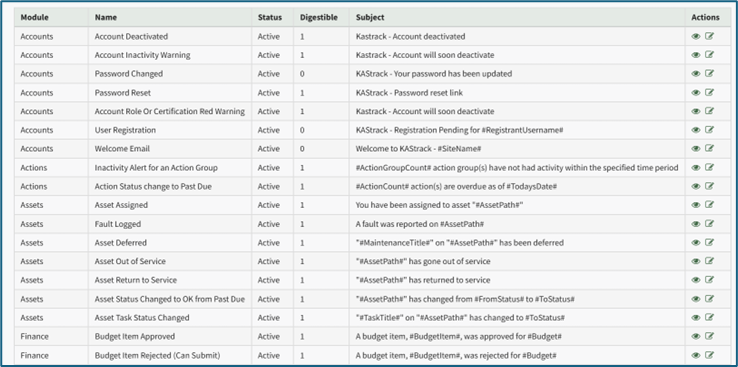
The Alert Email Templates Tab on the Settings Page of the Communications Module allows for the viewing of all alert templates in tabular form organized by module.
[](https://kaswiki.kastrack.com/uploads/images/gallery/2025-11/Qjwimage.png)
[](https://kaswiki.kastrack.com/uploads/images/gallery/2025-11/z8Aimage.png)
The Alert Email Templates Table shows the module name, the name of the alert, the status (Active/Inactive), if it is set to digestible (1=Yes, 0=No), and the subject of the email alert.
If an email alert is Digestible, the alert has a delayed timing feature. All digestible alerts are summarized and sent daily between midnight and 4 a.m. Central Time (United States).
There are two actions associated with the Alert Email Template Table. The eyeball icon opens the View Email config Modal. The edit icon opens the Edit Email config modal.
| **Mail Merge Fields Available to All Emails**
|
| \#Username#
| The username for the user receiving the email, if known
|
| \#FirstName#
| The first name for the user receiving the email, if known
|
| \#LastName#
| The first name for the user receiving the email, if known
|
| \#FullName#
| The last name for the user receiving the email, if known
|
| \#BaseURL#
| The base URL for the module
|
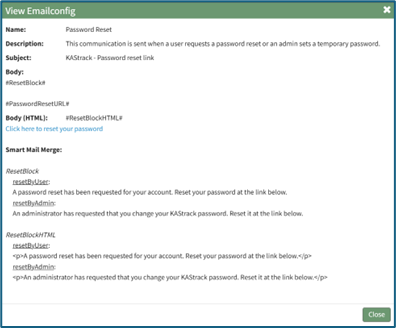
Selecting the eyeball icon, opening the View Email config Modal, allows a user to see the email alert template including the name, a description of the alert, the subject of the email, and the body of the email (plain-text and HTML).
[](https://kaswiki.kastrack.com/uploads/images/gallery/2025-11/D4uimage.png)
Selecting the edit icon opens the Edit Email config Modal displaying the Email Alert Template. Within this modal, the status (active/inactive), digestible status, subject, body, and smart mail merge options can all be customized for your organization’s preferences.