# Accounts Module

# Accounts: Introduction

# Accounts Module Summary

The Accounts Module is where all KAStrack user information (username, password, contact information, etc.) can viewed and managed. There are two pages in this module: My Accounts Page (each user has access) and the Accounts Page (for those given managerial access). Both pages are subdivided into tabs.

The Accounts Module has its own communication feature, called Channels, that serves as a commenting / bulletin board feature only visible to an individual and their supervisors. All accounts have one channel by default, called the Supervisor Channel. Additional channels can be created by administrators if desired.

# Understanding Access Levels

An Access Level is an authority designation in KAStrack. There are four default Access Levels: Admin, Supervisor, Employee, and Observer. The permissions granted to each Access Level are outlined in the Site Settings Module on the Access Levels Tab. Customized Access Levels and the permissions associated with them can be created and customized for your organization. A user can have multiple Access Level designations but must be assigned one per module in order to access that module in KAStrack.

<p class="callout info">By default, a user with an Admin Access Level will not be seen in the People Module unless they are also given the designation an Employee Access Level.</p>

# Understanding User Status

The Status column designates if a KAStrack user is active or inactive. Inactive account parameters are established on the Inactive Accounts Tab in the Site Settings Module.

# Understanding KAStrack's Password and Username Requirements

<span style="white-space: pre-wrap;">The default settings in KAStrack require passwords to be a minimum of 8 characters. By default, a temporary password is entered for a new user, who is required to update their password at initial login. Individuals with an Admin access level can alter password requirements by going to the Security Tab of the Site Setting Module. </span>

<p class="callout info"><span style="white-space: pre-wrap;">All passwords created through an import of information will be designated as temporary. </span></p>

<details id="bkmrk-how-to%3A-edit-passwor"><summary>How To: Edit Password Requirements</summary>

{{@95}}

</details>Usernames can only include alphabetical lowercase letters, numbers, hyphens (-), underscores (\_), periods (.), or “at” signs (@). No other special characters or spaces are permitted, and usernames cannot start with an underscore.

# Understanding My Channels

The Accounts Module has its own communication feature referred to as Channels that allows for comments to be sent between individuals and their supervisors and for comments to be shared between supervisory roles only. A date and time stamp are assigned to each comment as it is sent. An individual can access Channels on the Account Info Tab on the My Account Page.

For individuals with Supervisor and Admin module level access, channels are divided into two tabs: My Channels and All Channels.

[![image.png](https://kaswiki.kastrack.com/uploads/images/gallery/2025-11/scaled-1680-/ehhimage.png)](https://kaswiki.kastrack.com/uploads/images/gallery/2025-11/ehhimage.png)

The My Channels Tab will list all comment channels that an individual has access to.

The All Channels Tab will list all comment channels. The Supervisor Chanel is a default channel that allows comments to be made that are accessible by an individual and that individual’s supervisors.

[![image.png](https://kaswiki.kastrack.com/uploads/images/gallery/2025-11/scaled-1680-/FiWimage.png)](https://kaswiki.kastrack.com/uploads/images/gallery/2025-11/FiWimage.png)

<p class="callout info">Only individuals with Admin module access will see the clickable “Add Comment Channel” link.</p>

If an individual does not have access to the channel the statement, “You do not have permission to view this channel because you are not a participant,” will show in place of the comment textbox.

[![image.png](https://kaswiki.kastrack.com/uploads/images/gallery/2025-11/scaled-1680-/SBAimage.png)](https://kaswiki.kastrack.com/uploads/images/gallery/2025-11/SBAimage.png)

# Accounts Page

# Accounts Page Active Tab

<span style="white-space: pre-wrap;">The Active Tab in the Accounts Module displays the Active Accounts Table, which lists user accounts in the KAStrack system. </span>

<p class="callout info">Individuals with Supervisor module level access will only see the users they supervise on this table, while individuals with Admin module level access will see all users sitewide.</p>

The Active Accounts Table shows account data. Account fields are used as the column headers. The default columns are Name, Username, Email, Access Levels, Supervisors, Status (active/inactive), and Last Active.

[![image.png](https://kaswiki.kastrack.com/uploads/images/gallery/2025-11/scaled-1680-/Togimage.png)](https://kaswiki.kastrack.com/uploads/images/gallery/2025-11/Togimage.png)

<span style="white-space: pre-wrap;">Any desired account field can be created by an administrator. </span>

<details id="bkmrk-how-to%3A-add-a-custom"><summary>How To: Add a Custom/Additional User Account Information Field</summary>

{{@856}}

</details><span style="white-space: pre-wrap;">The Active Accounts table can be customized on the Table Defaults Tab of the Site Settings Module. </span>

<details id="bkmrk-how-to%3A-edit-the-acc"><summary>How To: Edit the Accounts Module Active Accounts Table</summary>

{{@96}}

</details>This would include any additional account fields created as discussed above plus other existing account fields such as First Name, Last Name, Employee ID, Phone, Address 1, and Address 2.

The Active Tab has two clickable links: Add User Access Level (allows for the alteration of a user’s access levels) and Quick Edit Supervisor Links (allows for the alteration of the users a supervisor manages.)

[![image.png](https://kaswiki.kastrack.com/uploads/images/gallery/2025-11/scaled-1680-/XrFimage.png)](https://kaswiki.kastrack.com/uploads/images/gallery/2025-11/XrFimage.png)

<details id="bkmrk-how-to%3A-add-an-acces"><summary>How To: Add an Access Level for an Individual</summary>

{{@119}}

</details><details id="bkmrk-how-to%3A-edit-a-user%27"><summary>How To: Edit a User's Supervisor</summary>

{{@127}}

</details><span style="white-space: pre-wrap;">Select the “Include Deactived Accounts” checkbox to view accounts that are inactive on the active accounts table. </span>

<p class="callout info"><span style="white-space: pre-wrap;">Individuals will only be able to see deactivated accounts that they directly supervise. Individuals with admin access level will see all deactivated accounts. </span></p>

On the Active Tab, bulk actions are only available to individuals with Admin module level access. Selecting any checkbox in a row opens a bulk actions modal above the table. Selecting the checkbox in the first column of the top row selects / deselects all rows in the table.

[![image.png](https://kaswiki.kastrack.com/uploads/images/gallery/2025-11/scaled-1680-/xN1image.png)](https://kaswiki.kastrack.com/uploads/images/gallery/2025-11/xN1image.png)

Bulk action options are Deactivate, Archive, and Export QR Codes.

#### Active Accounts Table Context Menu Explanations

The three dot (…) icon shown in the Name Column of the Active Accounts Table opens the Active Accounts Table context menu. The context menu has seven options for account management: View Account Info, Edit Account Info, Reset Password, Send Welcome Email, Deactivate Account, Archive Account, and View Certificates.

[![image.png](https://kaswiki.kastrack.com/uploads/images/gallery/2025-11/scaled-1680-/Q4Nimage.png)](https://kaswiki.kastrack.com/uploads/images/gallery/2025-11/Q4Nimage.png)

<table id="bkmrk-active-accounts-tabl-1"><colgroup><col style="width: 151px;"></col><col style="width: 646px;"></col></colgroup><tbody><tr><td colspan="2">**Active Accounts Table Context Menu Explanations**

</td></tr><tr><td>**Option**

</td><td>**Explanation**

</td></tr><tr><td>View Account Info

</td><td>Selecting “View Account Info” from the context menu opens the Account Info Tab for the user selected. The context menu from this page offers the same options as the Active Accounts Table.

</td></tr><tr><td>Edit Account Info

</td><td>Selecting “Edit Account Info” from the context menu opens the Edit Account Info Tab for the user selected. Changes can be made to a user’s personal information from this page. You must select “Save” at the bottom of the page for changes to be saved in the system.

<p class="callout info">Required fields are denoted by an asterisk (\*).</p>

<p class="callout info">When editing an existing account, only the username or the email fields can be changed at the same time.</p>

</td></tr><tr style="height: 10px;"><td>Reset Password

</td><td>Selecting “Reset Password” opens the Reset Password Tab for the user selected.

<details><summary>How To: Reset the Password for Another User</summary>

{{@136}}

</details></td></tr><tr><td>Send Welcome Email

</td><td>Selecting “Send Welcome Email” from the context menu will automatically send a welcome email to the user without additional prompting.

[![image.png](https://kaswiki.kastrack.com/uploads/images/gallery/2025-11/scaled-1680-/P98image.png)](https://kaswiki.kastrack.com/uploads/images/gallery/2025-11/P98image.png)

Confirmation that the welcome email was sent is indicated by a confirmation message stating “Welcome email sent!” that shows under the Active Accounts Page header.

The user will receive an automated message sharing their username and a link to your organization’s KAStrack login page. The default message is shown below.

[![image.png](https://kaswiki.kastrack.com/uploads/images/gallery/2025-11/scaled-1680-/7Ibimage.png)](https://kaswiki.kastrack.com/uploads/images/gallery/2025-11/7Ibimage.png)

Whether or not welcome emails are sent to a user when their account is created is a customizable choice designated on the Email Settings Tab of the Site Settings Module.

</td></tr><tr style="height: 10px;"><td>Deactivate Account

</td><td><span style="white-space: pre-wrap;">Deactivated accounts are not visible anywhere in KAStrack, including Reports. Users have the ability to personally re-activate a deactivated account by logging in (if permission to do so has been granted in the Site Settings Module). </span>

<span style="white-space: pre-wrap;">Selecting “Deactivate Account” from the context menu will open a confirmation modal for account deactivation. </span>

<details><summary>How To: Deactivate a User Account</summary>

{{@124}}

</details></td></tr><tr><td>Make Active

</td><td><span style="white-space: pre-wrap;">Make Active only shows on the context menu when a user account has been deactivated, replacing the “Deactivate Account” option. Selecting “Make Active” from the context menu will reactivate a deactivated account. </span>

<details><summary>How To: Reactivate a Deactivated Account</summary>

{{@135}}

</details></td></tr><tr><td>Archive Account

</td><td><span style="white-space: pre-wrap;">Archived accounts are not visible anywhere in KAStrack, including Reports, and archived users are unable to log back into KAStrack unless an administrator restores their account first. Selecting “Archive Account” from the context menu opens a Confirmation Modal allowing for an account to be archived. </span>

<p class="callout info">An account must first be archived before it can be deleted.</p>

<details><summary>How To: Archive a User Account</summary>

{{@120}}

</details><details><summary>How To: Permanently Delete a User Account</summary>

{{@134}}

</details><details><summary>How To: Restore an Archived User Account</summary>

{{@138}}

</details></td></tr><tr><td>View Certificates

</td><td>Selecting “View Certificates” from the context menu will open the User Page on the User Certifications Tab in the People Module.

<p class="callout info">If “View Certificates” does not show on the context menu, it’s likely that user does not have access to the People Module.</p>

</td></tr></tbody></table>

# Accounts Page Org Chart Tab

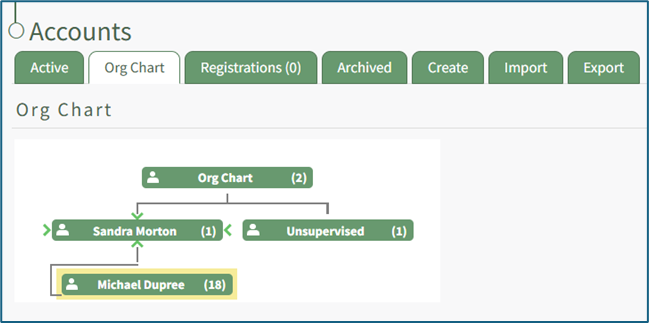
The Org Chart Tab on the Accounts Page in the Accounts Module is a visual representation of the organizational hierarchy established in KAStrack. When the Org Chart Tab is selected, a tree diagram representing the designated hierarchy appears as a quick visualization tool.

<span style="white-space: pre-wrap;"> </span>[![image.png](https://kaswiki.kastrack.com/uploads/images/gallery/2025-11/scaled-1680-/OpGimage.png)](https://kaswiki.kastrack.com/uploads/images/gallery/2025-11/OpGimage.png)

Hovering the cursor over a name will cause either directional arrows or “+” / “-“signs to appear. Click on the directional arrows around a user’s name to expand / collapse the org chart.

[![image.png](https://kaswiki.kastrack.com/uploads/images/gallery/2025-11/scaled-1680-/7zvimage.png)](https://kaswiki.kastrack.com/uploads/images/gallery/2025-11/7zvimage.png)
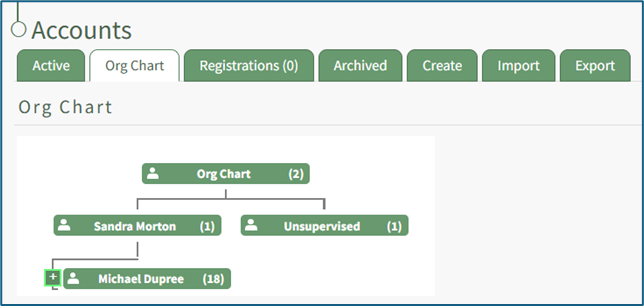
Click on the “+” icon next to the left of a user’s name for continued expansion of the hierarchy.

[![image.png](https://kaswiki.kastrack.com/uploads/images/gallery/2025-11/scaled-1680-/Lnximage.png)](https://kaswiki.kastrack.com/uploads/images/gallery/2025-11/Lnximage.png)

The “-” sign to the left of a name will collapse and hide the list below.

<span style="white-space: pre-wrap;"></span>

# Accounts Page Registrations Tab

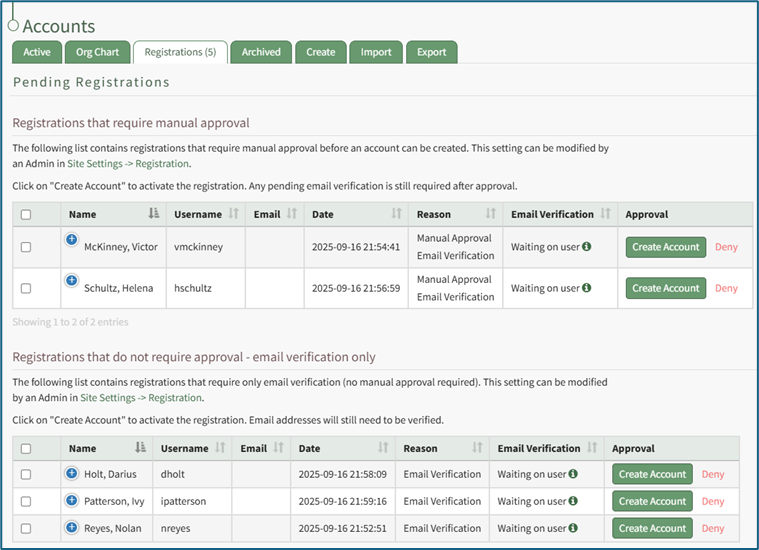
<span style="white-space: pre-wrap;">The Registration Tab on the Accounts Page displays the Pending Registration Table which allows for a quick view of the pending new user account registrations. Approvals/Verifications only show on the Registrations Tab when an individual manually registers themselves. The number of registrations that require approval show directly on the tab, Registrations (#), and as a badge next to the Registration page on the Main Menu. </span>

<p class="callout info">Only individuals with an Admin module level access will see the Archived Accounts Tab.</p>

The Pending Registrations Table shows account information for the user accounts whose system registration is pending confirmation. Account fields are used as the column headers. The default columns are Name, Username, Email, Date, Reason, Email Verification, and Approval.

[![image.png](https://kaswiki.kastrack.com/uploads/images/gallery/2025-11/scaled-1680-/vwZimage.png)](https://kaswiki.kastrack.com/uploads/images/gallery/2025-11/vwZimage.png)
<span style="white-space: pre-wrap;">Any desired account field can be created by an administrator. </span>

<details id="bkmrk-how-to%3A-add-a-custom"><summary>How To: Add a Custom/Additional User Account Information Field</summary>

{{@856}}

</details><span style="white-space: pre-wrap;">The Pending Registrations Table is customizable via the Table Defaults Tab in the Site Settings Module. </span>

<details id="bkmrk-how-to%3A-edit-the-acc"><summary>How To: Edit the Accounts Module Pending Registrations Table</summary>

{{@98}}

</details>This would include any additional account fields created as discussed above plus other existing account fields such as First Name, Last Name, Employee ID, Phone, Address 1, and Address 2.

Pending registrations are separated into two tables: Registrations that require manual approval and Registrations that do not require approval (email verification only). Registrations require manual approval when a user creates an account using a KAStrack registration link if the registration profile is set to require it. The parameters for registration links are established on the Registration Tab in the Site Settings Module.

<details id="bkmrk-how-to%3A-manually-app"><summary>How To: Manually Approve / Deny User Registrations</summary>

{{@132}}

</details>There are two icons that can be selected to open modals in the Pending Registrations Table: the plus sign icon in the Name column and the information icon in the Email Verification column.

[![image.png](https://kaswiki.kastrack.com/uploads/images/gallery/2025-11/scaled-1680-/RB5image.png)](https://kaswiki.kastrack.com/uploads/images/gallery/2025-11/RB5image.png)

Selecting the plus sign icon to the left of the user’s name opens the Pending Account Modal which lists all the account information for the new user.

[![image.png](https://kaswiki.kastrack.com/uploads/images/gallery/2025-11/scaled-1680-/V7Rimage.png)](https://kaswiki.kastrack.com/uploads/images/gallery/2025-11/V7Rimage.png)

Selecting the information icon to the right of “Waiting on user” opens the Email Verification Requirement Modal. The modal states, “This user has not yet verified their email address and will not be able to log in until they click the verification link sent to the provided email address.”

[![image.png](https://kaswiki.kastrack.com/uploads/images/gallery/2025-11/scaled-1680-/wfaimage.png)](https://kaswiki.kastrack.com/uploads/images/gallery/2025-11/wfaimage.png)

Select the “Resend Verification Email” to resend the verification email to the new user. A confirmation modal will appear, confirming the verification email was resent.

<span style="white-space: pre-wrap;"> Select the “Remove Verification Requirement” button and a warning modal appears stating, “Warning: This user has not verified their email address. Removing the email verification requirement will allow the user to log in without verifying their email address. Are you sure you want to proceed?”</span>

[![image.png](https://kaswiki.kastrack.com/uploads/images/gallery/2025-11/scaled-1680-/UOmimage.png)](https://kaswiki.kastrack.com/uploads/images/gallery/2025-11/UOmimage.png)

Select the “OK” button to remove the verification requirement, or click “Cancel” to return to the registration tab without saving any changes.

If there are no pending registrations, the tables are not visible. In their place is the statement, “There are no registrations that require manual approval/email verification at this time.”

[![image.png](https://kaswiki.kastrack.com/uploads/images/gallery/2025-11/scaled-1680-/OR9image.png)](https://kaswiki.kastrack.com/uploads/images/gallery/2025-11/OR9image.png)

Selecting any checkbox in a row opens a bulk actions modal above the table. Selecting the checkbox in the first column of the top row selects / deselects all rows in the table.

[![image.png](https://kaswiki.kastrack.com/uploads/images/gallery/2025-11/scaled-1680-/Uvvimage.png)](https://kaswiki.kastrack.com/uploads/images/gallery/2025-11/Uvvimage.png)

Bulk action options on the Registrations Tab are Create Account and Deny.

# Accounts Page Archived Tab

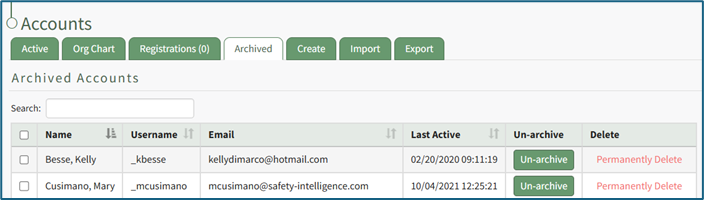
<span style="white-space: pre-wrap;">The Archived Tab on the Accounts Page displays the Archived Accounts Table, which shows the user accounts that have been intentionally archived. Archived accounts are not visible anywhere in KAStrack other than this table, including Reports. Archived users will be unable to log back into KAStrack unless an administrator restores their account first. </span>

<p class="callout info">Only individuals with an Admin module level access will see the Archived Accounts Tab.</p>

The Archived Account Table shows user account information for user accounts that have been archived. Account fields are used as the column headers. The default columns are Name, Username, Email, Last Active, Un-archive, and Delete.

[![image.png](https://kaswiki.kastrack.com/uploads/images/gallery/2025-11/scaled-1680-/fyfimage.png)](https://kaswiki.kastrack.com/uploads/images/gallery/2025-11/fyfimage.png)
<span style="white-space: pre-wrap;">Any desired account field can be created by an administrator. </span>

<details id="bkmrk-how-to%3A-add-a-custom"><summary>How To: Add a Custom/Additional User Account Information Field</summary>

{{@856}}

</details><span style="white-space: pre-wrap;">The Archived Accounts Table is customizable via the Table Defaults Tab in the Site Settings Module. </span>

<details id="bkmrk-how-to%3A-edit-the-acc"><summary>How To: Edit the Accounts Module Archived Accounts Table</summary>

{{@97}}

</details>This would include any additional account fields created as discussed above plus other existing account fields such as First Name, Last Name, Employee ID, Phone, Address 1, and Address 2.

Selecting any checkbox in a row opens a bulk actions modal above the table. Selecting the checkbox in the first column of the top row selects / deselects all rows in the table.

[![image.png](https://kaswiki.kastrack.com/uploads/images/gallery/2025-11/scaled-1680-/1Dmimage.png)](https://kaswiki.kastrack.com/uploads/images/gallery/2025-11/1Dmimage.png)

Bulk action options on the Archived Tab are Un-archive and Permanently Delete.

<details id="bkmrk-how-to%3A-archive-a-us"><summary>How To: Archive a User Account</summary>

{{@120}}

</details><details id="bkmrk-how-to%3A-restore-an-a"><summary>How To: Restore an Archived User Account</summary>

{{@138}}

</details><details id="bkmrk-how-to%3A-permanently-"><summary>How To: Permanently Delete a User Account</summary>

{{@134}}

</details>

# Accounts Page Create Tab

<span style="color: black;">The Create</span><span style="white-space: pre-wrap;"> Tab opens to the Create Account tab allowing for the generation of new user accounts. </span>

<p class="callout info">Only individuals with an Admin module level access will see the Create Tab.</p>

<details id="bkmrk-how-to%3A-create-an-in"><summary>How To: Create an Individual New User Account</summary>

{{@133}}

</details>

# Accounts Page Import Tab

<span style="white-space: pre-wrap;">The Import Tab opens to the Import Accounts Page, where new account information can be imported using a Comma Separated Value (CSV UTF-8) document for both new and existing accounts. </span>

<p class="callout info">Only individuals with an Admin module level access will see the Import Tab.</p>

When downloading the template for Account information, all possible fields in the KAStrack system will show as column headers. Leave cells blank if the information isn’t relevant to your organization’s requirements.

[![image.png](https://kaswiki.kastrack.com/uploads/images/gallery/2025-11/scaled-1680-/e9Himage.png)](https://kaswiki.kastrack.com/uploads/images/gallery/2025-11/e9Himage.png)

<span style="white-space: pre-wrap;">Instructions associated with the bulk importation of user information can be found in the How To: Bulk Import Several New Accounts. </span>

<details id="bkmrk-how-to%3A-bulk-import-"><summary>How To: Bulk Import Account Information</summary>

{{@121}}

</details><span style="white-space: pre-wrap;">The Import Tab can also be used to update existing account information. </span>

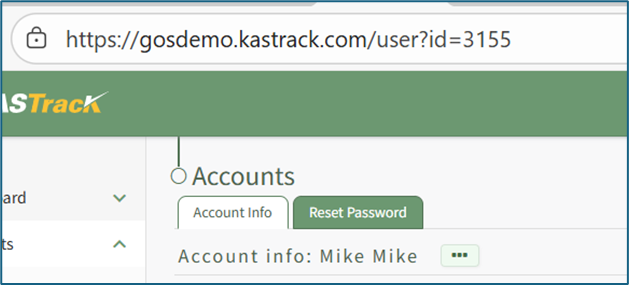
<p class="callout info"><span style="white-space: pre-wrap;">The KAStrack-generated unique user ID is a required column in the CSV file if editing an existing account. This can be found in the URL at the top of your browser when viewing a user’s Account Info page, or by doing an account export. </span>[![image.png](https://kaswiki.kastrack.com/uploads/images/gallery/2026-01/scaled-1680-/AIGimage.png)](https://kaswiki.kastrack.com/uploads/images/gallery/2026-01/AIGimage.png)</p>

<details id="bkmrk-how-to%3A-export-user-"><summary>How To: Export User Account Information</summary>

{{@131}}

</details>

# Accounts Page Export Tab

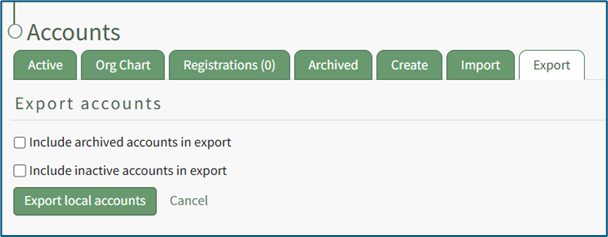
<span style="color: black; white-space: pre-wrap;">The Export Tab allows for the transfer of account information from KAStrack to a CSV file. There are checkboxes that designate whether to include archived and/or inactive accounts within the export. </span>

<p class="callout info">Only individuals with an Admin module level access will see the Export Tab.</p>

[![image.png](https://kaswiki.kastrack.com/uploads/images/gallery/2025-11/scaled-1680-/HIrimage.png)](https://kaswiki.kastrack.com/uploads/images/gallery/2025-11/HIrimage.png)

<span style="color: black;">If utilized, Export will create a CSV file with all possible fields in the KAStrack system, even fields not being utilized by your organization.</span>

<details id="bkmrk-how-to%3A-export-user-"><summary>How To: Export User Account Information</summary>

<span style="color: black;">{{@131}}</span>

</details>

# My Accounts Page

Each KAStrack user has access to the My Account Page in the Accounts Module. It is comprised of up to five tabs: Account Info, Notifications, Notification History, Payment History (if enabled), and Reset Password. Each tab can also be accessed from the Main Menu.

The My Accounts Page allows a user to access and update their account information, utilize Communication Channels, indicate report and alert notification preferences, review their notification history, reset their password, and see any historical payment submissions (if payments have been enabled).

# My Accounts Page: Account Info Tab

<span style="white-space: pre-wrap;">The </span><span style="color: black; white-space: pre-wrap;">Account Info Tab on the My Accounts Page displays a user’s personal information. Default fields include: Username, Email, First Name, Last Name, Home Page, Employee ID, Phone Number, Address 1, and Address 2. Other Custom Fields may show depending on settings designated in the Account Fields Tab of the Site Settings Module. </span>

<p class="callout info">The link https://**\[INSERT YOUR COMPANY'S DOMAIN NAME\]**.kastrack.com/user?id=me can be provided to any user and will take them directly to their My Account Page.</p>

<details id="bkmrk-how-to%3A-add-a-custom"><summary>How To: Add a Custom/Additional User Account Information Field</summary>

{{@856}}

</details>[![image.png](https://kaswiki.kastrack.com/uploads/images/gallery/2025-11/scaled-1680-/90cimage.png)](https://kaswiki.kastrack.com/uploads/images/gallery/2025-11/90cimage.png)

<span style="color: black;">At the bottom of the Account Info Page, comment channels allow an individual to view or generate comments from/to their supervisors or other users added to the channels.</span>

[![image.png](https://kaswiki.kastrack.com/uploads/images/gallery/2025-11/scaled-1680-/MrVimage.png)](https://kaswiki.kastrack.com/uploads/images/gallery/2025-11/MrVimage.png)

#### My Channels Explanation

The Accounts Module has its own communication feature referred to as Channels that allows for comments to be sent between individuals, their supervisors, and/or other accounts and certification roles. A date and time stamp is assigned to each comment as it is sent. Channels can be accessed at the bottom of the Account Info: (User Name) Page on the Account Info Tab of the Accounts. Module.

Channels are divided into two tabs: My Channels and All Channels. The My Channels Tab will list all comment channels that an individual has access to.

The All Channels Tab will list all comment channels. The Supervisor Chanel is a default channel that allows comments to be made that are only accessible by an individual’s supervisors. If an individual does not have access to the channel the statement, “You do not have permission to view this channel because you are not a participant,” will show in place of the comment textbox.

[![image.png](https://kaswiki.kastrack.com/uploads/images/gallery/2025-11/scaled-1680-/2meimage.png)](https://kaswiki.kastrack.com/uploads/images/gallery/2025-11/2meimage.png)

#### Account Info Tab Context Menu Explanations

<span style="color: black;">To manage your personal account information, click on the three dot (…) icon to the right of the Account Info: (User Name) header to open a context menu with the options: Edit Account Info, Reset Password, and View Certifications (will only show if the individual has access to the People Module).</span>

[![image.png](https://kaswiki.kastrack.com/uploads/images/gallery/2025-11/scaled-1680-/Iv5image.png)](https://kaswiki.kastrack.com/uploads/images/gallery/2025-11/Iv5image.png)

<table id="bkmrk-account-info-tab-con-1"><colgroup><col style="width: 147px;"></col><col style="width: 757px;"></col></colgroup><tbody><tr><td colspan="2">**Account Info Tab Context Menu Explanations**

</td></tr><tr><td>**Option**

</td><td>**Explanation**

</td></tr><tr><td>Edit Account Info

</td><td><span style="white-space: pre-wrap;">Selecting “Edit Account Info” from the context menu will open the Edit Account Info: (User Name) Page under the Account Info Tab. </span>

<details><summary>How To: Edit Your Personal Account Info</summary>

{{@130}}

</details></td></tr><tr><td>Reset Password

</td><td><span style="white-space: pre-wrap;">Selecting “Reset Password” from the context menu will open the Reset Password Tab on the My Account Page in the Account Module. </span>

<details><summary>How To: Reset Your Own Password</summary>

{{@137}}

</details></td></tr><tr><td>View Certifications

</td><td>Selecting “View Certifications” from the context menu will open the My Certifications Tab on the User: (User Name) Page in the People Module

<p class="callout info">If “View Certificates” does not show on the context menu, it’s likely that user does not have access to the People Module.</p>

</td></tr></tbody></table>

# My Accounts Page: Notifications Tab

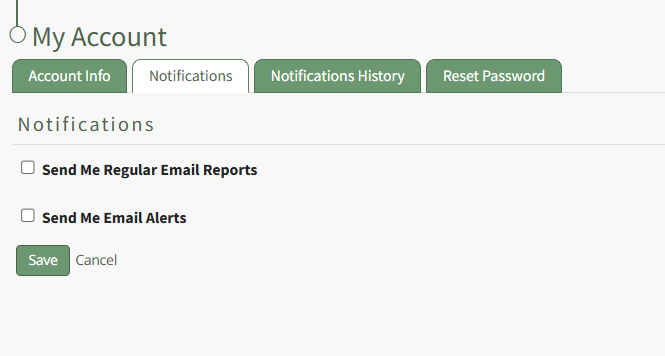
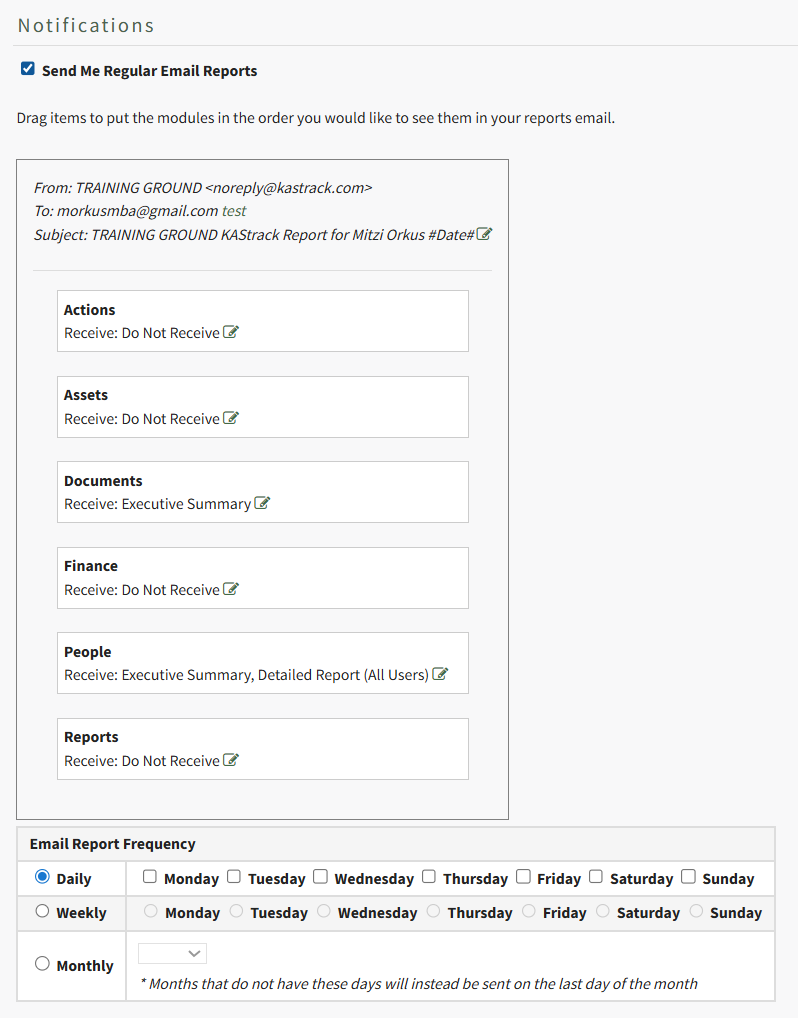
<span style="white-space: pre-wrap;">The </span><span style="color: black;">Notifications Tab on the My Account Page allows a KAStrack user to make their own selections regarding the type and frequency of email reports and email alerts they wish to receive. There are two checkboxes that if selected, expand with additional options for customization: “Send Me Regular Email Reports” and “Send Me Email Alerts”.</span>

[![image.png](https://kaswiki.kastrack.com/uploads/images/gallery/2026-04/scaled-1680-/P6Uimage.png)](https://kaswiki.kastrack.com/uploads/images/gallery/2026-04/P6Uimage.png)

<span style="color: black;">KAStrack generates and sends reports for the following modules: Actions, Assets, Documents, Finance, People, and Reports. If the “Send Me Regular Email Reports” box is checked, the user will be able to designate whether or not they wish to receive regular reports for each of those modules.</span>

[![image.png](https://kaswiki.kastrack.com/uploads/images/gallery/2026-04/scaled-1680-/1Cqimage.png)](https://kaswiki.kastrack.com/uploads/images/gallery/2026-04/1Cqimage.png)

<span style="white-space: pre-wrap;"> </span><span style="color: black;">A preview of the email header and subject are shown above the listed modules. Press “test” on the To: line to be sent a test email of the report summary based on the settings below. If you’d like to edit the content of the email’s Subject, select the green pen at the end of the Subject line.</span>

<span style="color: black;">The items in the list can be dragged and dropped as desired according to user preference or priority. Changing the order modules are listed in changes the order reports are presented in on the actual email.</span>

<span style="color: black;">Each item has the word “Receive” located underneath it with a text box located to the right to permit selection of the report/summary. If the cursor is placed within the box, a default report type is offered for that menu item via drop-down list from which multiple reports can be chosen. The table below indicates the reports are available for each module. Save the field with no selected reports to set it as Do Not Receive.</span>

<table id="bkmrk-regular-reports-avai"><colgroup><col style="width: 119px;"></col><col style="width: 592px;"></col></colgroup><tbody><tr><td colspan="2">**Regular Reports Available via Email Notifications**

</td></tr><tr><td>**Module**

</td><td>**Reports Available**

</td></tr><tr><td>Actions

</td><td>Executive Summary

</td></tr><tr><td>Assets

</td><td>Executive Summary, Detailed Report

</td></tr><tr><td>Documents

</td><td>Executive Summary

</td></tr><tr><td>Finance

</td><td>My Budgets, Executive Summary

</td></tr><tr><td>People

</td><td>Executive Summary<span style="color: black; white-space: pre-wrap;">, </span>Detailed Report<span style="color: black; white-space: pre-wrap;"> (All Users), </span>Detailed Report<span style="color: black; white-space: pre-wrap;"> (Supervised Users), </span>Detailed Report (All Users Grouped by Supervisor)<span style="color: black; white-space: pre-wrap;"> Detailed Report (All Users Group By Supervisor)</span>

</td></tr><tr><td>Reports

</td><td>Accounts: Current Accounts, All Payments, Budgets: All Budget Items, Budgets: Approval Status, Budgets: Pending Approvals, Budgets: Rejected Budget Items, Budgets: Summary, People: Certification Status, People: Certification Status by Certification Role, People: Pending Approvals, People: Role Status

<p class="callout info"><span style="color: black;">The reports available from the Reports Module will vary per user based on what the individual has access to.</span></p>

</td></tr></tbody></table>

<details id="bkmrk-how-to%3A-edit-your-in"><summary>How To: Edit Your Individual Email Report Preferences</summary>

</details><span style="color: black;">KAStrack sends email alerts for the following modules: Accounts, Actions, Assets, Dispatch, Documents, Finance, Forms, Meetings, and People.</span>

[![image.png](https://kaswiki.kastrack.com/uploads/images/gallery/2026-04/scaled-1680-/qXzimage.png)](https://kaswiki.kastrack.com/uploads/images/gallery/2026-04/qXzimage.png)

<span style="color: black;">Each module has a dropdown menu with three options that designate when an email alert is sent: “Real Time”, “Digest”, and “Do Not Receive”.</span>

<span style="color: black;">Real Time is the default setting that sends email alerts in real time. Digest is KAStrack’s delayed timing feature. Selecting “Digest” will summarize all alerts with this designation to be sent daily between midnight and 4 a.m., Central Time (United States). Alert digests are not applicable to all alerts.</span><span style="white-space: pre-wrap;"> </span>

<p class="callout info"><span style="color: black;">Whether or not an alert is digestible is specified by an individual with an admin access level.</span></p>

<span style="white-space: pre-wrap;">Do Not Receive designates that the user does not wish to receive email alerts about that specific module. </span>

<p class="callout info"><span style="color: black;">Communications sent from users are always sent in real time.</span></p>

<details id="bkmrk-how-to%3A-edit-your-in-1"><summary>How To: Edit Your Individual Email Alert Preferences</summary>

{{@128}}

</details>

# My Accounts Page: Notifications History Tab

<span style="color: black;">The Notifications History Tab shows a user the chronology of notifications that have been received and sent in the system.</span>

[![image.png](https://kaswiki.kastrack.com/uploads/images/gallery/2025-11/scaled-1680-/B1mimage.png)](https://kaswiki.kastrack.com/uploads/images/gallery/2025-11/B1mimage.png)

<span style="color: black;">The notifications history is shown in table format. There is both a Received and Sent Tab.</span>

<span style="color: black;">The Received Communications Table separates Pending and Processed Communications. The columns show the date and module communications occurred in, the outcome of the attempt, the subject, and has a clickable link to view details.</span>

<span style="color: black;">Selecting “View” in the Outcome column opens the Outcome Modal showing who the email was sent to, the result, when it was sent, and if the read receipt has been received.</span>

[![image.png](https://kaswiki.kastrack.com/uploads/images/gallery/2025-11/scaled-1680-/KbFimage.png)](https://kaswiki.kastrack.com/uploads/images/gallery/2025-11/KbFimage.png)

<span style="color: black;">Selecting “View” in the Details column opens the View Communication Modal which states the subject of the notification and provides a clickable link to view the asset.</span>

<span style="color: black;">The default history shown for received communications is the past 7 days. Click “Load another 7 days” to extend the notification history another week. KAStrack will state how many days of historical communications are showing.</span>\\

[![image.png](https://kaswiki.kastrack.com/uploads/images/gallery/2025-11/scaled-1680-/ES2image.png)](https://kaswiki.kastrack.com/uploads/images/gallery/2025-11/ES2image.png)

<span style="color: black;">If there is no communication history for a seven-day period, KAStrack will state that there were no processed communications.</span> **Note: KAStrack can show all history since account creation.**

[![image.png](https://kaswiki.kastrack.com/uploads/images/gallery/2025-11/scaled-1680-/fn5image.png)](https://kaswiki.kastrack.com/uploads/images/gallery/2025-11/fn5image.png)

<span style="color: black;">The Sent Communications Table similarly shows all Sent Communications for the previous 7 days.</span>

[![image.png](https://kaswiki.kastrack.com/uploads/images/gallery/2025-11/scaled-1680-/3Wwimage.png)](https://kaswiki.kastrack.com/uploads/images/gallery/2025-11/3Wwimage.png)

<span style="color: black;">Click “Load another 7 days” to extend the notification history another week. KAStrack will state how many days of history are showing. If there is no sent communication history for a seven-day period, KAStrack will state that there were no sent communications.</span>

# My Accounts Page: Payment History Tab

<span style="color: black;">The Payment History Tab shows a user the chronology of payments that have been made from their account while filling out payment-enabled Forms from the Forms Module. If a Form requires a payment, the transaction will be logged to the user’s account and history maintained on this page.</span>

<span style="color: black;">The payment history is shown in table format. Transactions are listed with the most recent entry first. The Description field is the posted description of the transaction, which is set by the Form designer. In the Attachment(s) column, you can download a receipt of the transaction to keep with your local records.</span>

[![image.png](https://kaswiki.kastrack.com/uploads/images/gallery/2025-11/scaled-1680-/X6limage.png)](https://kaswiki.kastrack.com/uploads/images/gallery/2025-11/X6limage.png)

# My Accounts Page: Reset Password Tab

<span style="color: black;">The Reset Password Tab on the My Accounts Page allows a user to reset their password.</span>

[![image.png](https://kaswiki.kastrack.com/uploads/images/gallery/2025-11/scaled-1680-/PV7image.png)](https://kaswiki.kastrack.com/uploads/images/gallery/2025-11/PV7image.png)

<details id="bkmrk-how-to%3A-reset-your-o"><summary>How To: Reset Your Own Password</summary>

{{@137}}

</details>

# Accounts: Supplemental Resources

There are seven different email alerts associated with the Accounts Module.

# Account Module Email Alert Summary

<span style="white-space: pre-wrap;">Users can enable and set their own notifications preferences for system emails on the Notifications Tab of the My Accounts Page in the Accounts Module. </span>

<details id="bkmrk-how-to%3A-edit-your-in"><summary>How To: Edit Your Individual Email Report Preferences</summary>

{{@129}}

</details><table id="bkmrk-account-module-email"><colgroup><col style="width: 295px;"></col><col style="width: 272px;"></col></colgroup><tbody><tr><td colspan="2">**Account Module Email Alerts Summary Table**

</td></tr><tr><td>**Email Alert**

</td><td>**Digestible**

</td></tr><tr><td>Account Deactivated

</td><td>Can be sent via digest

</td></tr><tr><td>Account Inactivity Warning

</td><td>Can be sent via digest

</td></tr><tr><td>Password Changed

</td><td>Sent in Real Time Only

</td></tr><tr><td>Password Reset

</td><td>Sent in Real Time Only

</td></tr><tr><td>Account Role or Certification Red Warning

</td><td>Can be sent via digest

</td></tr><tr><td>User Registration

</td><td>Sent in Real Time Only

</td></tr><tr><td>Welcome Email

</td><td>Sent in Real Time Only

</td></tr></tbody></table>

<p class="callout info"><span style="white-space: pre-wrap;">Administrators can update the system default settings (including whether they are sent in real-time or digestible) for alert emails on the Settings Page of the Communications Module. </span></p>

# Complete List of Account Module How Tos

{{@28}}

# Customizable Tables in the Accounts Module

There are three tables in the Accounts Module than can be customized for your organization's specific needs.

[![image.png](https://kaswiki.kastrack.com/uploads/images/gallery/2026-01/scaled-1680-/HT9image.png)](https://kaswiki.kastrack.com/uploads/images/gallery/2026-01/HT9image.png)
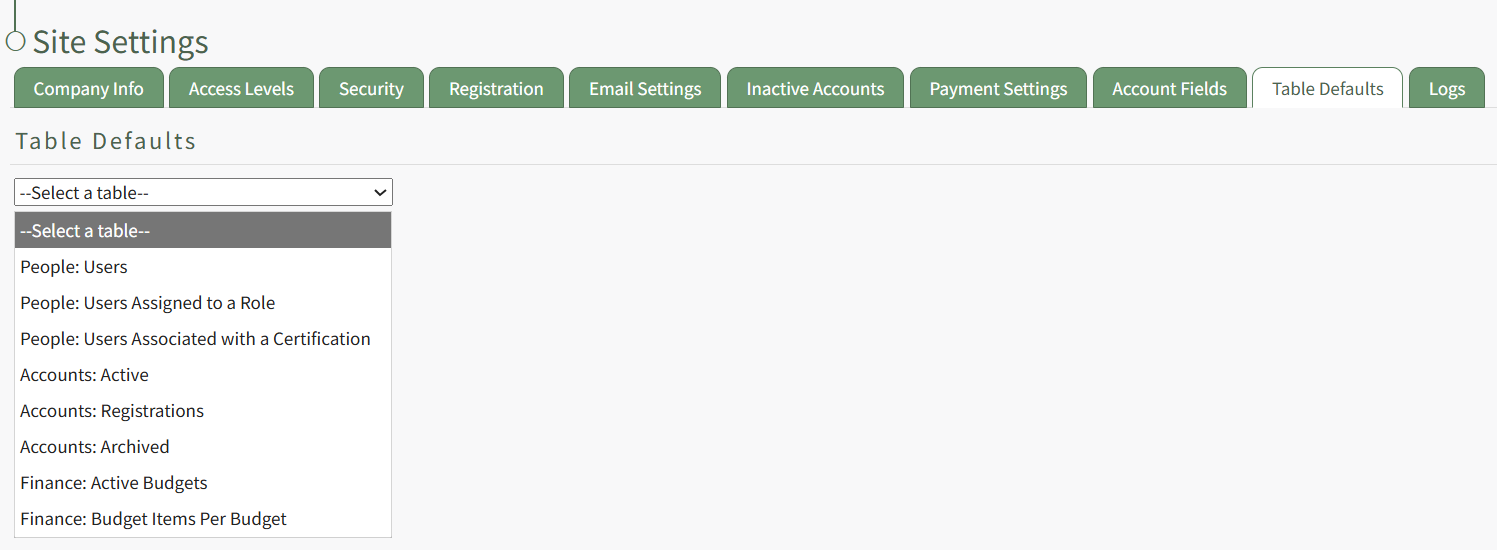
The Active Accounts Table (on the Active Tab of the Accounts Module), the Archived Accounts Table (on the Archived Tab of the Accounts Module), and the Pending Account Registrations Table (on the Registrations Tab of the Accounts Module) are all customizable.

<details id="bkmrk-how-to%3A-edit-the-acc"><summary>How To: Edit the Accounts Module Active Accounts Table</summary>

{{@96}}

</details><details id="bkmrk-how-to%3A-edit-the-acc-1"><summary>How To: Edit the Accounts Module Archived Accounts Table</summary>

{{@97}}

</details><details id="bkmrk-how-to%3A-edit-the-acc-2"><summary>How To: Edit the Accounts Module Pending Registrations Table</summary>

{{@98}}

</details>Customizable user account information fields can be created and utilized in the tables as needed.

<details id="bkmrk-how-to%3A-add-a-custom"><summary>How To: Add a Custom / Additional User Account Information Field</summary>

{{@856}}

</details>